The Complete Guide to Self-Hosted Start Pages in 2026
Learn how to set up your own self-hosted browser start page. Compare Homer, Heimdall, Dashy, and NavHub for complete privacy and customization.
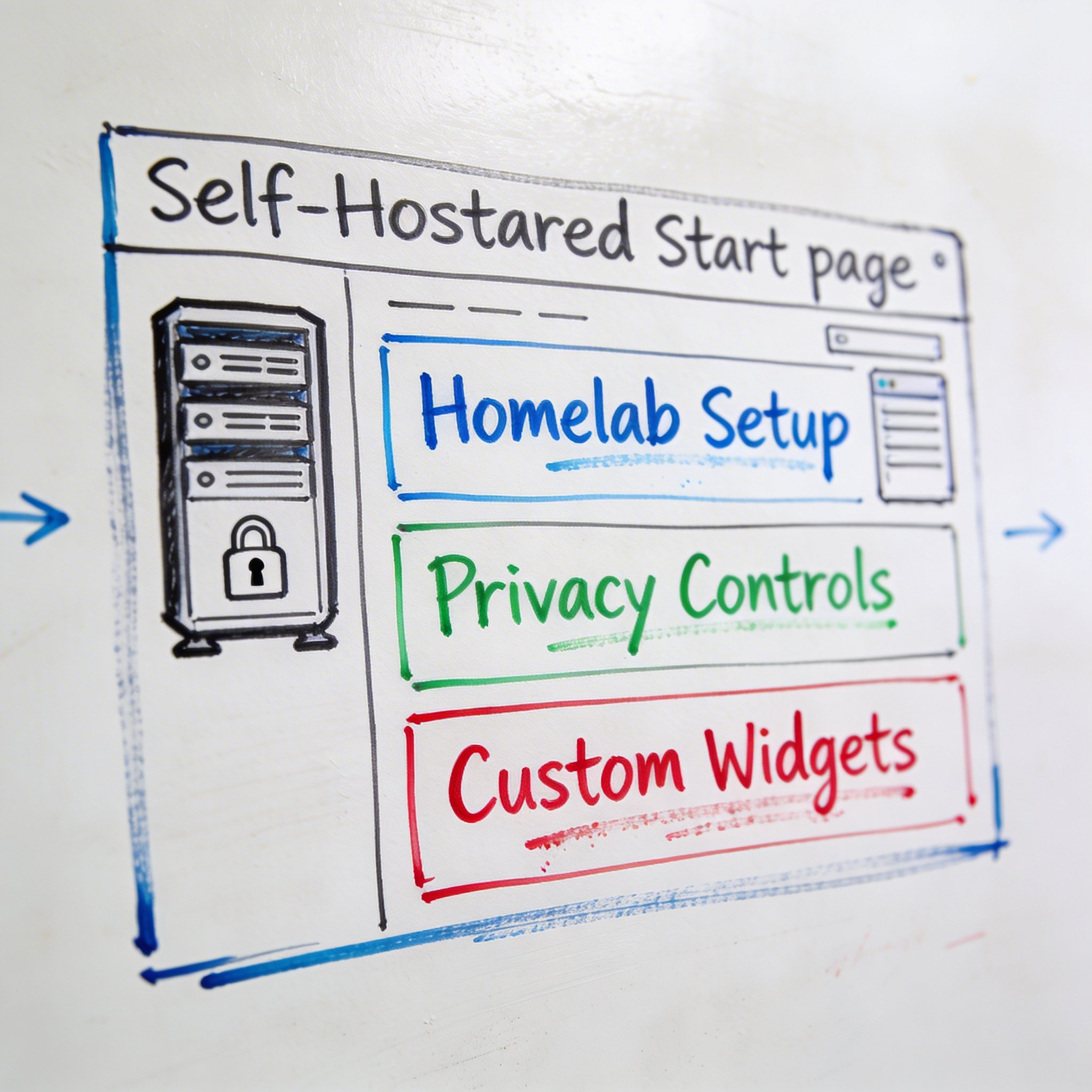
Cloud services are convenient, but they come with trade-offs: your data lives on someone else’s server, you’re subject to their terms of service, and if they shut down, your data goes with them.
For privacy-conscious users and homelab enthusiasts, self-hosted start pages offer an alternative. You run the software on your own hardware, keeping complete control of your data.
In this guide, I’ll cover everything you need to know about self-hosted start pages: why you might want one, the best options available, and step-by-step setup instructions.
Why Self-Host Your Start Page?
1. Complete Privacy
Cloud-hosted services analyze your bookmarks and browsing patterns. Even with good privacy policies, your data exists on their servers.
Self-hosted means: - Your bookmarks never leave your network - No third-party analytics - No data mining for ads - Complete control over backups
2. No Subscription Fees
Most cloud bookmark managers charge $3-10/month for premium features. Self-hosting has a one-time setup cost (or free if you have existing hardware) and no ongoing fees.
3. Customization Freedom
Self-hosted solutions are often open-source, meaning: - Modify the code to your needs - Add custom features - Integrate with your existing homelab - No artificial limitations
4. Always Available
Cloud services have outages. A self-hosted start page on your local network: - Works even when your internet is down - Loads instantly (no external requests) - No dependency on third-party uptime
5. Learning Opportunity
Setting up self-hosted services teaches valuable skills: - Docker and containerization - Networking and reverse proxies - Linux administration - Security best practices
The Best Self-Hosted Start Pages
1. Homer
Best for: Minimalists who want a simple, fast dashboard
What it is: A static dashboard generator that creates a beautiful homepage from a YAML configuration file.
Key features: - Lightning fast (static HTML, no database) - YAML-based configuration - Custom themes and icons - Service health checks - Keyboard navigation
Pros: - Extremely lightweight - No database required - Easy to version control (just a YAML file) - Beautiful default themes
Cons: - Static only (no AI, no search) - Manual bookmark management - Limited interactivity
Best for: Users who want a simple, beautiful launcher for their homelab services.
GitHub: github.com/bastienwirtz/homer
2. Heimdall
Best for: Visual-focused users who want an app launcher
What it is: An application dashboard with a focus on visual tiles and easy organization.
Key features: - Visual tile-based layout - Built-in app icons (hundreds included) - Tag-based organization - Enhanced app support (shows status, weather, etc.) - User authentication
Pros: - Beautiful interface - Easy to use (web-based management) - Good selection of built-in app tiles - Multi-user support
Cons: - Heavier than Homer - Less customizable - No bookmark management (app-focused)
Best for: Users who want a pretty launcher for their self-hosted apps.
GitHub: github.com/linuxserver/Heimdall
3. Dashy
Best for: Power users who want maximum features
What it is: A highly customizable dashboard with extensive widget support and configuration options.
Key features: - 50+ built-in widgets - Multiple layout options - Status monitoring - Search and filtering - Themes and customization - Optional cloud sync
Pros: - Feature-rich - Extensive widget library - Active development - Good documentation
Cons: - Complex configuration - Heavier resource usage - Steeper learning curve
Best for: Homelab enthusiasts who want a feature-packed dashboard.
GitHub: github.com/Lissy93/dashy
4. Homepage
Best for: Service monitoring with clean aesthetics
What it is: A modern dashboard focused on service integration and status monitoring.
Key features: - Service widgets (Plex, Sonarr, etc.) - Clean, modern design - Docker integration - Bookmarks support - Weather and search widgets
Pros: - Excellent service integrations - Beautiful default design - Active development - Easy Docker setup
Cons: - Limited bookmark features - Configuration requires YAML knowledge - Service-focused, not bookmark-focused
Best for: Users running many self-hosted services who want status monitoring.
GitHub: github.com/gethomepage/homepage
5. NavHub (Self-Hosted)
Best for: Users who want AI features without cloud dependency
What it is: An AI-powered bookmark manager and start page available in both cloud and self-hosted versions.
Key features: - AI auto-categorization - Semantic search - Widget system - Bookmark management - Browser extension support
Pros: - Full AI features on your hardware - No subscription needed - Complete privacy - Regular updates from cloud version
Cons: - Requires more resources (AI processing) - More complex setup - Needs GPU for best AI performance (optional)
Best for: Users who want AI bookmark organization without sending data to the cloud.
Website: navhub.info/self-hosted
Comparison Table
| Feature | Homer | Heimdall | Dashy | Homepage | NavHub |
|---|---|---|---|---|---|
| Ease of Setup | ⭐⭐⭐⭐⭐ | ⭐⭐⭐⭐ | ⭐⭐⭐ | ⭐⭐⭐⭐ | ⭐⭐⭐ |
| Resource Usage | Minimal | Light | Medium | Light | Heavy |
| Bookmark Management | Basic | None | Basic | Basic | Advanced |
| AI Features | ❌ | ❌ | ❌ | ❌ | ✅ |
| Search | ❌ | ❌ | ✅ | ✅ | ✅ (Semantic) |
| Widgets | Limited | Limited | 50+ | 20+ | 10+ |
| Service Monitoring | Basic | Enhanced | Advanced | Advanced | Basic |
| Themes | ✅ | ✅ | ✅ | ✅ | ✅ |
| Multi-user | ❌ | ✅ | ✅ | ❌ | ✅ |
| Mobile App | ❌ | ❌ | ❌ | ❌ | PWA |
Step-by-Step Setup: Homer
Homer is the easiest to set up. Here’s how:
Prerequisites
- Docker installed
- 5 minutes of time
Docker Compose Setup
Create a docker-compose.yml:
version: "3"
services:
  homer:
    image: b4bz/homer
    container_name: homer
    volumes:
      - ./assets:/www/assets
    ports:
      - 8080:8080
    restart: unless-stopped
Configuration
Create ./assets/config.yml:
title: "My Dashboard"
subtitle: "Homer"
logo: "logo.png"

header: true
footer: false

columns: "3"
connectivityCheck: true

theme: default
colors:
  light:
    highlight-primary: "#3367d6"
    highlight-secondary: "#4285f4"

services:
  - name: "Apps"
    icon: "fas fa-cloud"
    items:
      - name: "GitHub"
        logo: "assets/tools/github.png"
        subtitle: "Code repository"
        url: "https://github.com"

      - name: "Gmail"
        logo: "assets/tools/gmail.png"
        subtitle: "Email"
        url: "https://gmail.com"

  - name: "Media"
    icon: "fas fa-play"
    items:
      - name: "Plex"
        logo: "assets/tools/plex.png"
        subtitle: "Media server"
        url: "http://192.168.1.100:32400"
Start Homer
docker-compose up -d
Access at http://localhost:8080
Step-by-Step Setup: Dashy
For users wanting more features:
Docker Compose
version: "3.8"
services:
  dashy:
    image: lissy93/dashy
    container_name: dashy
    volumes:
      - ./conf.yml:/app/public/conf.yml
    ports:
      - 4000:80
    environment:
      - NODE_ENV=production
    restart: unless-stopped
Configuration
Create conf.yml:
pageInfo:
  title: My Dashboard
  description: Self-hosted start page

appConfig:
  theme: colorful
  layout: auto
  iconSize: medium
  language: en

sections:
  - name: Productivity
    icon: fas fa-briefcase
    items:
      - title: GitHub
        url: https://github.com
        icon: fab fa-github
      - title: Notion
        url: https://notion.so
        icon: si-notion

  - name: Homelab
    icon: fas fa-server
    items:
      - title: Proxmox
        url: http://192.168.1.10:8006
        icon: si-proxmox
        statusCheck: true
      - title: Portainer
        url: http://192.168.1.10:9000
        icon: si-portainer
        statusCheck: true

widgets:
  - type: clock
    options:
      timeZone: America/New_York
      format: en-US
  - type: weather
    options:
      apiKey: YOUR_API_KEY
      city: New York
Start Dashy
docker-compose up -d
Access at http://localhost:4000
Step-by-Step Setup: NavHub Self-Hosted
For AI-powered self-hosting:
Requirements
- Docker & Docker Compose
- 2GB+ RAM (4GB recommended for AI)
- PostgreSQL (included in compose)
Docker Compose
version: "3.8"
services:
  navhub:
    image: navhub/navhub:latest
    container_name: navhub
    ports:
      - 8080:8080
    environment:
      - DATABASE_URL=postgresql://navhub:password@db:5432/navhub
      - REDIS_URL=redis://redis:6379
      - OPENAI_API_KEY=${OPENAI_API_KEY}  # Optional, for AI features
    depends_on:
      - db
      - redis
    restart: unless-stopped

  db:
    image: postgres:15
    container_name: navhub-db
    environment:
      - POSTGRES_USER=navhub
      - POSTGRES_PASSWORD=password
      - POSTGRES_DB=navhub
    volumes:
      - ./data/postgres:/var/lib/postgresql/data
    restart: unless-stopped

  redis:
    image: redis:7-alpine
    container_name: navhub-redis
    volumes:
      - ./data/redis:/data
    restart: unless-stopped
Environment Variables
Create .env:
OPENAI_API_KEY=sk-your-key-here # Optional
Start NavHub
docker-compose up -d
Access at http://localhost:8080
Security Best Practices
1. Use a Reverse Proxy
Don’t expose your dashboard directly. Use Traefik, Nginx Proxy Manager, or Caddy:
# Example Traefik labels
labels:
  - "traefik.enable=true"
  - "traefik.http.routers.homer.rule=Host(`dashboard.yourdomain.com`)"
  - "traefik.http.routers.homer.tls.certresolver=letsencrypt"
2. Enable Authentication
Most dashboards support authentication: - Homer: Use Authelia or Authentik in front - Heimdall: Built-in user system - Dashy: Built-in authentication - NavHub: Built-in user accounts
3. Keep Software Updated
docker-compose pull
docker-compose up -d
4. Backup Your Configuration
# Backup script
tar -czvf dashboard-backup-$(date +%Y%m%d).tar.gz ./config ./data
5. Use HTTPS
Always use HTTPS, even on local network. Let’s Encrypt with Traefik makes this easy.
Which Should You Choose?
Choose Homer if:
- You want the simplest possible setup
- You just need quick links to services
- You prefer configuration-as-code (YAML in git)
- You have limited system resources
Choose Heimdall if:
- You want a visual, tile-based launcher
- You prefer web-based configuration
- You need multi-user support
- You want built-in app icons
Choose Dashy if:
- You want maximum features and widgets
- You enjoy tweaking and customizing
- You need advanced status monitoring
- You have moderate system resources
Choose Homepage if:
- You run many *arr apps and media services
- You want beautiful service integrations
- You prefer a modern, clean design
- Status monitoring is important
Choose NavHub Self-Hosted if:
- You want AI features (auto-categorization, semantic search)
- You have significant bookmarks to manage
- You don’t want to send data to cloud services
- You have adequate system resources
Conclusion
Self-hosted start pages offer privacy, customization, and independence from cloud services. Whether you want a simple launcher (Homer), a feature-rich dashboard (Dashy), or AI-powered bookmark management (NavHub), there’s an option for your needs.
The setup investment is minimal—most can be running in under 30 minutes with Docker. And once configured, you’ll have a personalized command center that’s truly yours.
Want AI features without self-hosting? Try NavHub cloud free—you can always migrate to self-hosted later.
What’s your self-hosted dashboard of choice? Share your setup in the comments!