How to Create a Custom Browser Start Page (2026)
Learn how to create a custom browser start page. Step-by-step guide to building personalized new tab pages with widgets, bookmarks, and productivity tools.
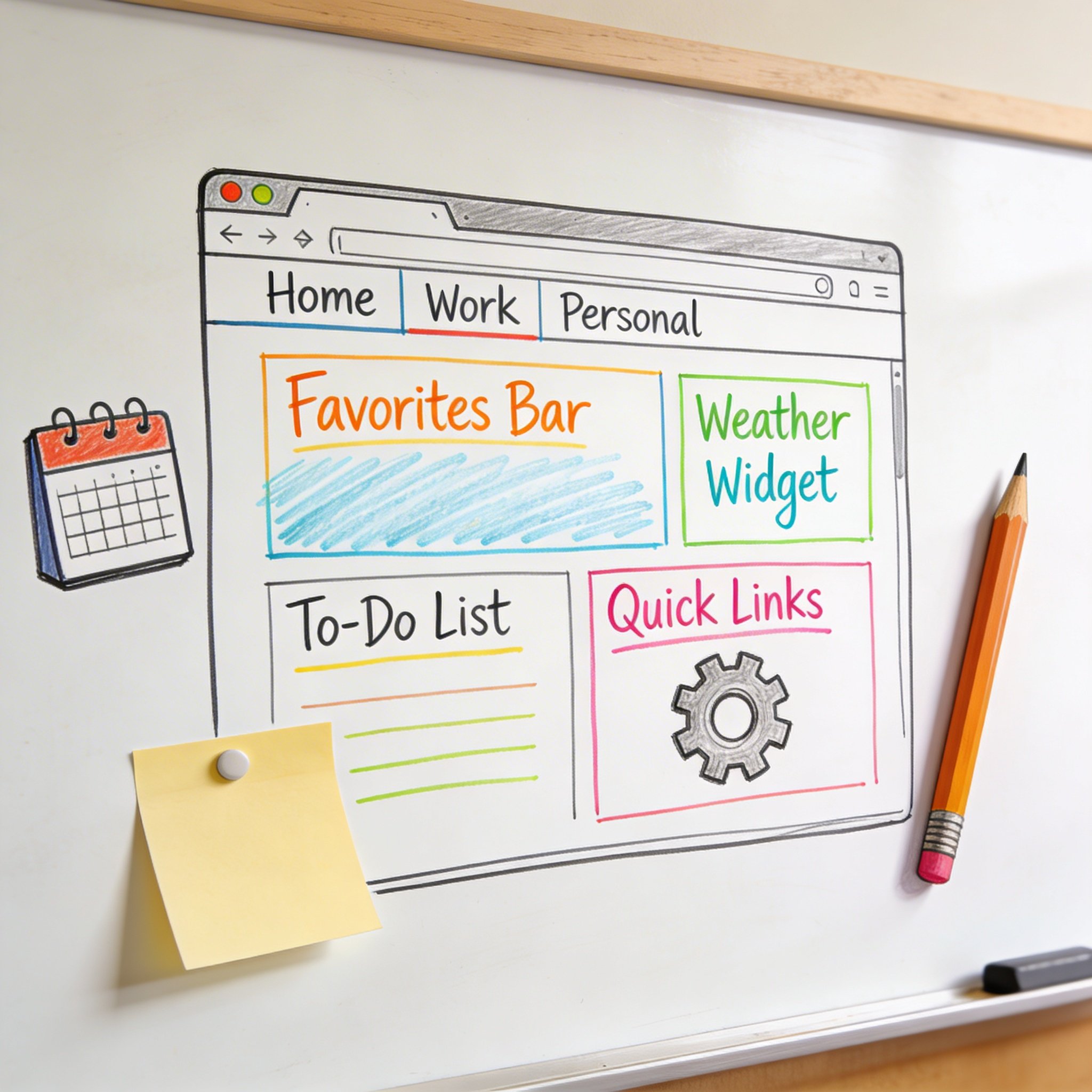
Every time you open a new tab, you see the same boring page.
Google search bar. Frequently visited sites. Maybe some news you didn’t ask for. It’s generic, impersonal, and not particularly useful.
What if your start page was actually helpful? Quick access to your most-used tools. Today’s weather. Your tasks. Your bookmarks organized exactly how you want.
This guide shows you how to create a custom browser start page—from simple tweaks to fully personalized dashboards.
Why Customize Your Start Page?
The Default Problem
Default new tab pages are designed for everyone, which means they’re optimized for no one: - Generic quick links you don’t use - Distracting news feeds - Ads or promoted content - No personalization
Benefits of Custom Start Pages
Faster workflow: One click to your most-used tools instead of typing URLs or searching bookmarks.
Reduced distractions: No news feeds, no “trending” content pulling your attention.
At-a-glance information: Weather, tasks, calendar—see it instantly without opening separate apps.
Personal organization: Your bookmarks, your categories, your layout.
Motivation: Daily quotes, goals, or focus timers to start work intentionally.
Method 1: Browser Settings (Simplest)
Chrome
Set a custom homepage: 1. Settings → On startup 2. Select “Open a specific page or set of pages” 3. Add your preferred URL
Custom new tab page: 1. Install a new tab extension (see below) 2. Or set startup page to open automatically
Firefox
Set homepage: 1. Settings → Home 2. Under “Homepage and new windows”, select “Custom URLs” 3. Enter your preferred page
New tab behavior: 1. Settings → Home → New Windows and Tabs 2. Choose “Homepage” or “Blank Page”
Edge
Customize new tab: 1. Settings → Start, home, and new tabs 2. Customize new tab page 3. Choose layout: Focused, Inspirational, or Informational 4. Toggle quick links, weather, news on/off
Safari
Set homepage: 1. Safari → Settings → General 2. Homepage: Enter your preferred URL 3. New windows/tabs: Choose “Homepage”
Method 2: New Tab Extensions
Best Chrome Extensions
1. Momentum - Beautiful background images - Daily focus/todo - Weather widget - Minimal design
Setup: Install → Choose name → Customize widgets
2. Toby - Bookmark organization - Tab session management - Clean workspace view - Free tier available
Setup: Install → Import bookmarks → Organize into collections
3. Start.me - Widget-based layout - Bookmarks, notes, RSS - Multiple pages - Sync across devices
Setup: Install → Create account → Add widgets
4. Tabliss - Highly customizable - Weather, time, quotes - Custom backgrounds - Open source
Setup: Install → Right-click to customize widgets
Best Firefox Add-ons
1. Tabliss (also on Firefox) - Same features as Chrome version - Full customization
2. New Tab Override - Simple redirect to any URL - Lightweight
3. Nightingale - Beautiful backgrounds - Clock and weather - Bookmark shortcuts
Method 3: Web-Based Start Pages
NavHub
Features: - Visual bookmark dashboard - AI-powered organization - Custom widgets (weather, notes, search) - Multiple pages - Cross-browser sync
Setup: 1. Visit navhub.info 2. Create account 3. Add bookmarks and widgets 4. Set as browser homepage
Why choose: Best for visual organization with AI auto-categorization.
Start.me
Features: - Widget-based layout - RSS feeds, bookmarks, notes - Multiple page tabs - Browser extension
Setup: 1. Visit start.me 2. Create account 3. Add widgets to your page 4. Install extension to sync
Why choose: Highly customizable with extensive widget library.
Notion as Start Page
Features: - Full customization with databases - Embed anything - Connect to your workspace - Templates available
Setup: 1. Create Notion page 2. Add quick links database 3. Embed widgets (weather, calendar) 4. Set as browser homepage
Why choose: If you already use Notion for everything.
Method 4: Self-Hosted Start Pages
For Developers/Power Users
1. Homer - Docker-based - YAML configuration - Clean dashboard style - Fast and lightweight
2. Heimdall - Application dashboard - Search bar - Beautiful icons - Easy configuration
3. Dashy - Extensive widgets - Status monitoring - Authentication support - Highly customizable
4. Flame - Bookmarks and applications - Weather and search - Docker integration - Category organization
Building Your Custom Start Page
Step 1: Define Your Needs
Ask yourself: - What do I access most frequently? (top 10 links) - What information do I need at a glance? (weather? tasks? calendar?) - What distracts me? (news? social media shortcuts?) - Do I need multiple “pages” for different contexts?
Step 2: Choose Your Method
| Need | Best Method |
|---|---|
| Simple homepage change | Browser settings |
| Beautiful + simple | Momentum extension |
| Bookmark organization | NavHub or Toby |
| Widgets + customization | Start.me or Tabliss |
| Full control + self-host | Homer or Dashy |
| Integrated with workflow | Notion |
Step 3: Set Up Core Elements
Essential components:
Quick links (5-10 most used)
- Work tools (Slack, Email, PM tool)
- Frequent sites (GitHub, Google Drive)
- Entertainment (if desired)
Search bar (optional)
- Google/DuckDuckGo
- Or multi-search (Google, YouTube, maps)
Information widget (1-2 max)
- Weather (if helpful)
- Date/time
- Calendar overview
Focus element (optional)
- Daily quote
- Focus timer
- Current task
Step 4: Test and Iterate
Use it for a week, then adjust: - Which links do you actually click? - What’s missing? - What do you ignore? - Is it distracting or focusing?
Best Practices
1. Keep It Minimal
More isn’t better. Start with: - 5-10 quick links max - 1-2 information widgets - Clean background
Add only what you’ll actually use daily.
2. Prioritize by Frequency
Top spots for most-used links: - Top-left gets most attention - Organize by access frequency, not category - Review and reorder monthly
3. Avoid Distractions
Remove or hide: - News feeds - Social media shortcuts (unless necessary) - Animated backgrounds - Too many widgets
4. Context Switching
If you have different modes: - Create separate pages (work, personal, project) - Use browser profiles - Or use tool like NavHub with multiple workspaces
5. Sync Across Devices
Use web-based solution or extension that syncs: - Same experience on laptop, desktop, work computer - Changes propagate automatically - No re-setup when switching devices
Start Page Ideas by Role
Developer
Essential links: - GitHub - Stack Overflow - Documentation (MDN, React docs, etc.) - Local dev tools (localhost:3000, etc.) - CI/CD dashboard
Widgets: - GitHub activity - Build status - Quick search (docs, Stack Overflow)
Designer
Essential links: - Figma/Sketch - Dribbble/Behance - Design resources - Client project folders - Color/font tools
Widgets: - Inspiration feed (limited) - Color palette - Quick access to current projects
Marketer
Essential links: - Analytics dashboards - Social platforms - CRM - Content calendar - Ad platforms
Widgets: - Traffic overview - Today’s scheduled posts - Campaign status
Student
Essential links: - LMS (Canvas, Blackboard) - Library - Google Drive/Docs - Course websites - Study tools
Widgets: - Assignment due dates - Class schedule - Study timer
Remote Worker
Essential links: - Email - Slack/Teams - Project management - Calendar - Video call tool
Widgets: - Today’s meetings - Current tasks - Time zone clock (if global team)
Common Mistakes
1. Too Many Links
Problem: 50 links, can’t find anything Solution: Limit to 10-15 max, use categories for others
2. Distracting Backgrounds
Problem: Cool photo, but draws attention Solution: Simple solid color or subtle gradient
3. Information Overload
Problem: Weather, stocks, news, quotes, crypto… Solution: Pick 1-2 actually useful widgets
4. Never Updating
Problem: Links from 6 months ago you don’t use Solution: Monthly review, remove unused
5. Not Setting as Default
Problem: Forget to use custom page Solution: Set as homepage AND new tab page
Conclusion
A custom start page transforms your browser into a productivity tool.
Key principles:
- Start minimal: Add only what you need
- Prioritize by use: Most-used links in prime spots
- Avoid distractions: No news, limited widgets
- Match your workflow: Different pages for different contexts
- Review regularly: Update monthly
Recommendations:
| User Type | Best Solution |
|---|---|
| Minimal/simple | Momentum or Tabliss |
| Bookmark-heavy | NavHub or Toby |
| Widget customizer | Start.me |
| Already in Notion | Notion page |
| Developer/self-host | Homer or Dashy |
Your new tab is prime real estate. Make it work for you.
Want a visual, AI-organized start page? Try NavHub — your personalized browser dashboard
What does your custom start page look like? Share your setup in the comments!