Visual Bookmarks vs Text Bookmarks: Which Display Works Better?
Compare visual bookmark displays with text-based lists. Learn which format helps you find bookmarks faster and organize more effectively.
How do you recognize a website?
By its name? Or by how it looks?
Most people are visual. We recognize Netflix by its red logo, GitHub by its cat, Dribbble by its pink ball—not by reading the names.
So why are most bookmark managers still text lists?
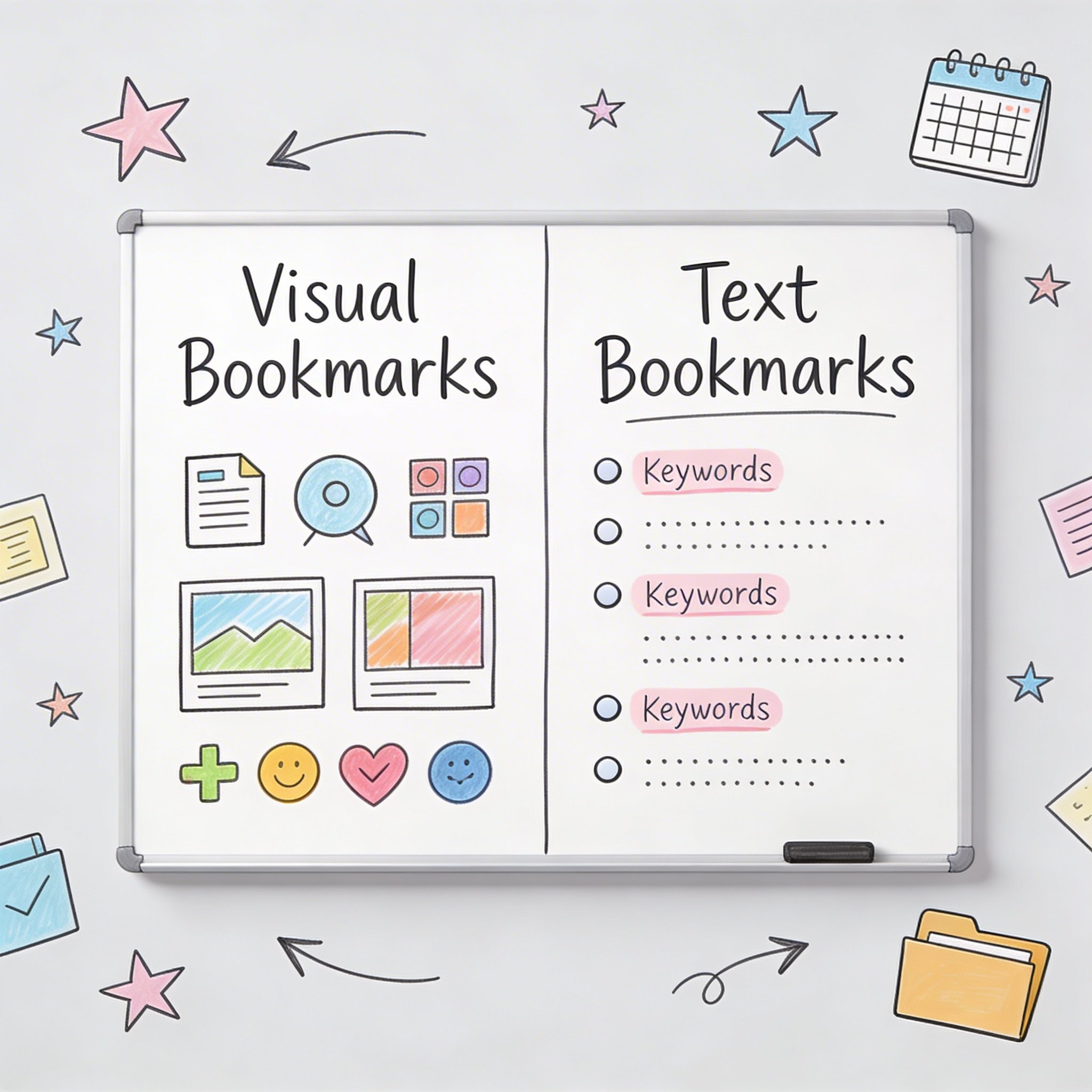
This guide compares visual bookmarks (thumbnails, cards) vs. text bookmarks (lists, titles) to help you choose the right display for your workflow.
What Are Visual Bookmarks?
Definition
Visual bookmarks display saved links as: - Thumbnails: Screenshot of the page - Cards: Title + image + description - Favicons: Website icons (minimal visual) - Cover images: Custom or auto-generated graphics
Example Display
┌─────────────┐  ┌─────────────┐  ┌─────────────┐
│  [image]    │  │  [image]    │  │  [image]    │
│             │  │             │  │             │
│  React Docs │  │  GitHub     │  │  Dribbble   │
└─────────────┘  └─────────────┘  └─────────────┘
Tools with Visual Display
- NavHub (cards + thumbnails)
- Raindrop.io (multiple views)
- Safari Start Page (icons)
- Browser speed dial extensions
What Are Text Bookmarks?
Definition
Text bookmarks display saved links as: - Title only: Just the name - Title + URL: Name and link - Hierarchical lists: Folders and items
Example Display
📁 Development
   ├─ React Documentation
   ├─ GitHub
   ├─ Stack Overflow
   └─ MDN Web Docs

📁 Design
   ├─ Dribbble
   ├─ Behance
   └─ Figma Community
Tools with Text Display
- Chrome Bookmarks
- Firefox Bookmarks
- Pinboard
- Most browser bookmark managers
Visual Bookmarks: Pros and Cons
Advantages
1. Faster recognition
Our brains process images 60,000x faster than text. You recognize a website’s screenshot instantly.
2. Better for browsing
Scrolling through thumbnails is more engaging than reading lists. Good for discovering what you saved.
3. Design inspiration
For designers, seeing the actual page helps recall why you saved it.
4. Emotional connection
Images create stronger memories. You remember what pages looked like.
5. Modern interface
Visual displays feel more app-like and less like file managers.
Disadvantages
1. Slower loading
Thumbnails take bandwidth and time to load. Text is instant.
2. More screen space
Cards and thumbnails need more room. Fewer items visible at once.
3. Outdated screenshots
Websites change. Old thumbnails become misleading.
4. Not all pages thumbnail well
Login pages, dashboards, and apps often look generic.
5. Harder to scan quickly
When you know what you want, text lists are faster to scan.
Text Bookmarks: Pros and Cons
Advantages
1. Information density
See 50+ bookmarks at once. Visual shows maybe 12.
2. Instant loading
No images to download. Immediate display.
3. Easier scanning
When you know what you’re looking for, text lists are faster.
4. Universal compatibility
Works everywhere, any browser, any device.
5. Lower storage/bandwidth
No thumbnails to store or transfer.
Disadvantages
1. All bookmarks look the same
Just titles. No visual differentiation.
2. Harder to browse
Reading 100 titles is tedious. You stop looking.
3. Title-dependent
“Getting Started” means nothing. Visual shows context.
4. No emotional recall
You don’t remember what “Untitled Document” looked like.
5. Dated interface
Text lists feel like 1990s file managers.
When Visual Works Better
Use Case 1: Design Inspiration
Why visual wins: - You saved it because of how it looks - Thumbnails show the design immediately - Faster to find the right aesthetic
Example: Looking for a dark mode example you saved → Scroll thumbnails → Instantly recognize it
Use Case 2: Casual Browsing
Why visual wins: - You don’t know exactly what you want - Discovery mode, not search mode - More engaging to browse
Example: Sunday afternoon, browsing saved articles → Thumbnails more inviting than list
Use Case 3: Infrequent Access
Why visual wins: - You forgot what you saved - Titles don’t jog memory - Images trigger recognition
Example: “I saved something about productivity 6 months ago” → Visual helps find it
Use Case 4: Start Page / Dashboard
Why visual wins: - Daily access to few sites - Want attractive interface - No need to see many at once
Example: Personal start page with 8-10 favorite sites → Visual cards are perfect
When Text Works Better
Use Case 1: Reference Collections
Why text wins: - You know exactly what you need - Documentation, APIs, specs - Search or alphabetical order
Example:
Finding React useEffect docs → Search “useEffect” → First result
Use Case 2: Large Collections
Why text wins: - 500+ bookmarks - Need to see many at once - Thumbnails would be overwhelming
Example: Developer with 800 documentation links → Text list + folders + search
Use Case 3: Power Users
Why text wins: - Keyboard navigation - Speed over aesthetics - Already know your collection
Example:
Type /docs react → Jump to folder → Arrow keys → Enter
Use Case 4: Limited Bandwidth
Why text wins: - Slow internet connection - Mobile data limits - Thumbnails don’t load
Example: Working from a café with slow WiFi → Text loads instantly
The Hybrid Approach
Best bookmark managers offer both views.
How Hybrid Works
Toggle between: - List view (text, compact) - Card view (visual, spacious) - Headlines view (title + favicon)
Use each for different contexts: - Card view: Inspiration collection - List view: Documentation - Headlines: General browsing
Tools Supporting Hybrid
| Tool | List View | Card View | Toggle |
|---|---|---|---|
| NavHub | ✅ | ✅ | ✅ |
| Raindrop.io | ✅ | ✅ | ✅ |
| Notion | ✅ | ✅ | ✅ |
| Browser | ✅ | ❌ | ❌ |
Visual Enhancement Tips
Make Text Bookmarks More Visual
- Use favicons: Most browsers show website icons
- Emoji prefixes: 📚 Docs, 🛠 Tools, 🎨 Design
- Color-coded folders: Some extensions support this
- Clean titles: Remove clutter for readability
Make Visual Bookmarks More Useful
- Custom cover images: Override bad auto-thumbnails
- Add descriptions: Text context for visual cards
- Organize by visual similarity: Group similar-looking sites
- Regular refresh: Update outdated thumbnails
Choosing Your Display
Quick Decision Guide
| Your Situation | Best Display |
|---|---|
| < 100 bookmarks | Visual |
| 500+ bookmarks | Text + search |
| Designer/creative | Visual |
| Developer/researcher | Text |
| Mixed collection | Hybrid |
| Slow internet | Text |
| Start page | Visual |
| Reference library | Text |
The Real Answer
Use both.
Most modern bookmark managers let you switch views. Use visual for browsing and discovery, text for quick access and large collections.
Tool Recommendations
Best for Visual
NavHub: AI-generated thumbnails, card view, visual dashboard Raindrop.io: Beautiful cards, multiple layouts Safari Start Page: Native visual icons
Best for Text
Pinboard: Pure text, ultra-fast Browser native: Simple and universal Notion: Flexible database views
Best for Hybrid
NavHub: Toggle between views, search both ways Raindrop.io: Multiple view options Notion: Switch table/gallery/list
Conclusion
Visual vs. text isn’t about right or wrong.
Visual bookmarks: - Better for browsing, discovery, inspiration - Slower, larger, but more engaging - Great for designers and visual thinkers
Text bookmarks: - Better for reference, large collections, power users - Fast, compact, searchable - Great for developers and researchers
The best approach: Use a tool that offers both, and switch based on context.
Your bookmark display should help you find what you need—choose accordingly.
Want the best of both worlds? Try NavHub with visual cards and text search
Do you prefer visual or text bookmarks? Share in the comments!