How to Sync Bookmarks Across All Your Devices
Learn how to keep your bookmarks synchronized across your phone, tablet, laptop, and desktop. Complete guide with browser-specific instructions and third-party solutions.
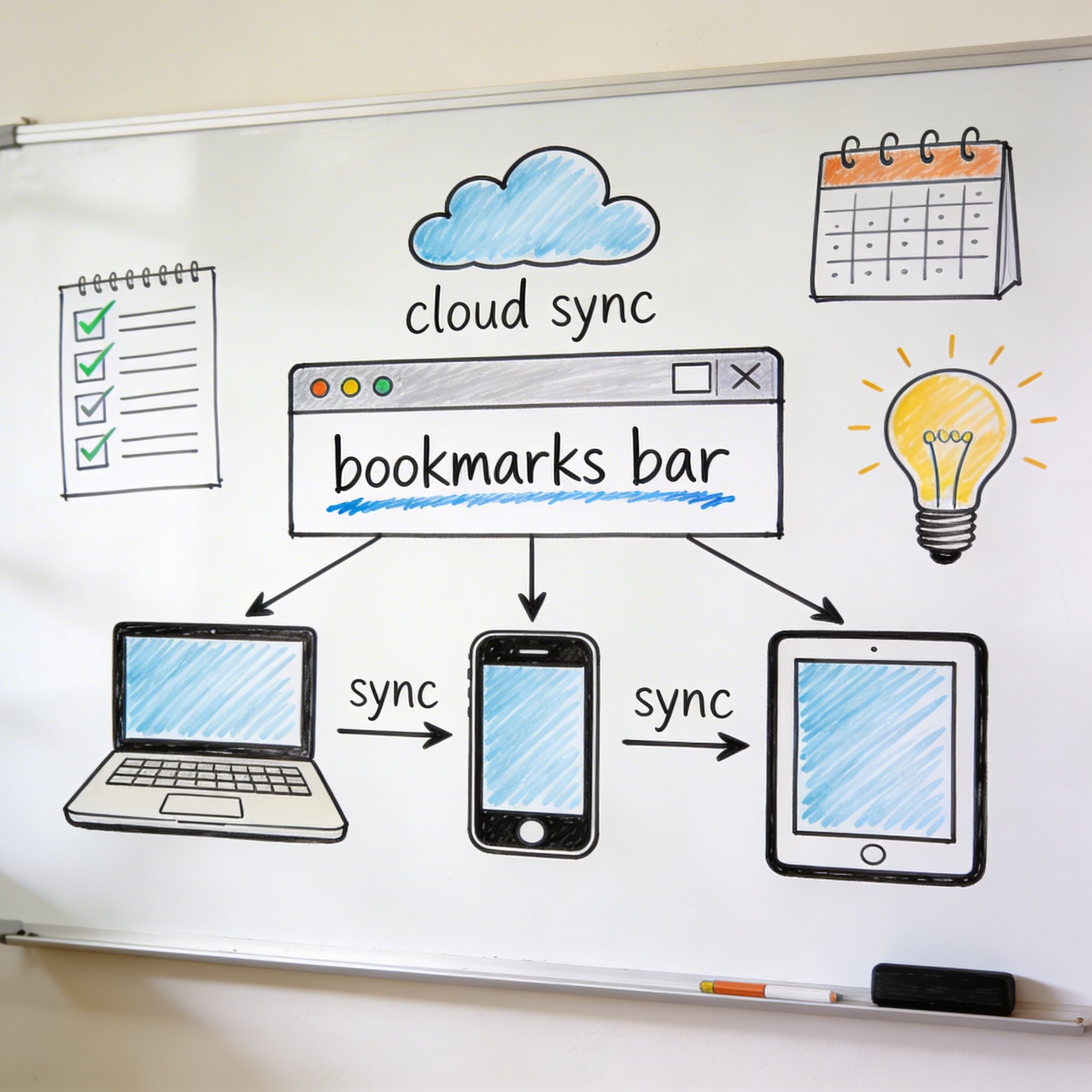
You saved something important on your work laptop.
Now you’re on your phone and… where is it?
This frustration is universal. We all use multiple devices but our bookmarks stay trapped on whichever device we saved them on.
This guide shows you exactly how to sync bookmarks across all your devices—whether you’re using Chrome, Firefox, Safari, Edge, or a mix of browsers.
Why Bookmark Sync Matters
The Multi-Device Reality
The average person uses 3.64 connected devices. That’s a phone, tablet, laptop, and often a work computer.
Without sync: - Save something at work → Can’t find it at home - Bookmark on phone → Invisible on laptop - Organize on desktop → Phone still shows chaos
What Good Sync Provides
Seamless Access: Every bookmark available on every device, instantly.
Unified Organization: Folders and tags consistent everywhere.
Automatic Backup: Lose a device? Your bookmarks survive in the cloud.
Real-Time Updates: Add a bookmark anywhere, see it everywhere within seconds.
Browser-Native Sync Options
Google Chrome Sync
Setup:
- Open Chrome → Click your profile icon (top right)
- Click “Turn on sync…”
- Sign in with your Google account
- Click “Yes, I’m in”
What syncs: - Bookmarks ✅ - Open tabs ✅ - Extensions ✅ - Passwords ✅ - Autofill ✅ - Settings ✅
Customize what syncs: 1. Settings → You and Google → Sync and Google services 2. Click “Manage what you sync” 3. Toggle individual items on/off
Pros: - Works across Windows, Mac, Linux, Android, iOS - Includes extensions and passwords - Free and built-in
Cons: - Requires Google account - Privacy concerns (Google has your data) - Only works within Chrome ecosystem
Firefox Sync
Setup:
- Click menu → Sign in to Firefox
- Create a Firefox Account (or sign in)
- Choose what to sync
What syncs: - Bookmarks ✅ - Open tabs ✅ - Add-ons ✅ - Passwords ✅ - History ✅ - Preferences ✅
Mobile setup: 1. Download Firefox on your phone 2. Sign in with the same account 3. Bookmarks appear automatically
Pros: - End-to-end encryption (more private than Chrome) - Open source - Works across platforms
Cons: - Only within Firefox ecosystem - Account required - Slower sync than Chrome in some cases
Safari iCloud Sync
Setup (Mac):
- System Preferences → Apple ID → iCloud
- Enable “Safari” toggle
Setup (iPhone/iPad):
- Settings → [Your Name] → iCloud
- Toggle Safari on
What syncs: - Bookmarks ✅ - Reading List ✅ - Open tabs ✅
Pros: - Native Apple experience - Seamless across Mac, iPhone, iPad - Works offline
Cons: - Apple devices only - No Windows support (mostly) - Limited to Safari browser
Microsoft Edge Sync
Setup:
- Click profile icon → Sign in
- Use Microsoft account
- Confirm sync in settings
What syncs: - Favorites (bookmarks) ✅ - Extensions ✅ - Settings ✅ - Passwords ✅ - Collections ✅
Pros: - Works across Windows, Mac, Android, iOS - Microsoft account integration - Syncs with Windows devices seamlessly
Cons: - Only within Edge ecosystem - Microsoft account required - Less popular than Chrome/Firefox
Cross-Browser Sync Solutions
What if you use Chrome at work and Safari at home?
Browser-native sync doesn’t cross ecosystems. You need third-party tools.
Option 1: Dedicated Bookmark Manager (NavHub)
How it works: - Browser extension saves bookmarks to cloud - Access from any browser via web app - Mobile apps for iOS and Android
Setup: 1. Create NavHub account at navhub.info 2. Install browser extension (Chrome, Firefox, Edge, Safari) 3. Import existing bookmarks 4. Access from any device via web or app
Why NavHub: - Works with ANY browser - AI-powered organization - Visual bookmark display - Search works across all bookmarks - Free tier available
Best for: Multi-browser users, teams, people who want smart organization.
Option 2: Raindrop.io
How it works: - Cloud-based bookmark manager - Extensions for all browsers - Mobile apps
Setup: 1. Create account 2. Install extension 3. Import bookmarks
Best for: Visual bookmarks, nested collections.
Option 3: Xmarks (Discontinued, But Alternatives Exist)
Xmarks was the gold standard for cross-browser sync. It’s gone, but alternatives emerged:
- EverSync: Sync bookmarks across browsers
- Atavi: Cloud bookmark manager
- Floccus: Open-source, self-hosted option
Comparison
| Tool | Cross-Browser | Mobile | Free | AI Features |
|---|---|---|---|---|
| NavHub | ✅ | ✅ | ✅ | ✅ |
| Raindrop.io | ✅ | ✅ | ✅ | ❌ |
| EverSync | ✅ | ❌ | ✅ | ❌ |
| Floccus | ✅ | Limited | ✅ | ❌ |
Mobile-Specific Sync Setup
iPhone/iPad
Safari to Safari: iCloud sync (see above)
Chrome to Chrome: Sign in with Google account
Cross-browser: Use NavHub or Raindrop.io app
Access bookmarks offline: Most apps cache your bookmarks locally.
Android
Chrome to Chrome: Sign in with Google account (automatic)
Firefox to Firefox: Firefox Account sync
Cross-browser: Third-party app (NavHub, Raindrop.io)
Tips for Mobile
- Use widgets: Quick access to favorite bookmarks
- Enable offline mode: Essential bookmarks available without internet
- Organize by context: “Work” folder at office, “Personal” at home
- Use quick actions: Long-press app icon for shortcuts
Syncing with Work Computers
The Corporate Dilemma
Work computers often have restrictions: - Can’t install extensions - Can’t sign in to personal accounts - IT policies block cloud services
Solutions:
1. Web-based access Use navhub.info directly—no extension needed. Bookmark the site itself.
2. Ask IT for approval Many companies whitelist productivity tools. Request approval for your bookmark manager.
3. Use browser profiles Create separate Chrome/Firefox profiles for work and personal. Each can sync independently.
4. Email important links to yourself Not elegant, but works when all else fails.
Managing Work vs Personal Bookmarks
Strategy 1: Separate folders
Bookmarks/
├── Work/
│   ├── Projects/
│   ├── Tools/
│   └── Documentation/
└── Personal/
    ├── Reading/
    ├── Shopping/
    └── Entertainment/
Strategy 2: Different profiles Chrome allows multiple profiles. Each syncs to different accounts.
Strategy 3: Different tools Browser bookmarks for work (stays on work account), NavHub for personal (syncs everywhere).
Troubleshooting Sync Issues
Bookmarks Not Syncing
Check these first: 1. Signed in? Verify you’re logged into the same account on all devices 2. Sync enabled? Check settings—sync might be toggled off 3. Internet connection? Sync requires connectivity 4. Server status? Check if the service is down
Chrome-specific fixes: - chrome://sync-internals/ shows sync status - Toggle sync off and on again - Sign out, clear cache, sign back in
Firefox-specific fixes: - about:sync-log shows sync details - Force sync: Settings → Sync → Sync Now - Reconnect: Disconnect and reconnect account
Duplicate Bookmarks After Sync
This happens when: - You imported bookmarks on multiple devices - Sync merged instead of replacing
Fix: 1. Choose one device as “source of truth” 2. Export bookmarks from that device 3. On other devices: delete all bookmarks, then import the exported file 4. Let sync distribute the clean set
Bookmarks Out of Order
Sync prioritizes content over order. Reordering might not sync immediately.
Fix: - Manually reorder on each device - Use folders instead of relying on order - Third-party tools like NavHub maintain order better
Best Practices for Bookmark Sync
1. Choose One Primary System
Don’t use both browser sync AND a third-party tool simultaneously. Pick one:
- Browser sync: If you use one browser everywhere
- Third-party tool: If you use multiple browsers or need advanced features
2. Clean Before You Sync
Syncing a mess just spreads the mess everywhere.
Before enabling sync: 1. Delete dead links 2. Organize into folders 3. Remove duplicates 4. Rename unclear bookmarks
3. Regular Maintenance
Even with sync, bookmarks need maintenance:
Monthly: - Review “unsorted” folder - Delete links you no longer need - Check for duplicates
Quarterly: - Review folder structure - Archive old projects - Verify sync is working
4. Have a Backup Strategy
Sync is backup, but not foolproof.
Additional backup: - Export bookmarks monthly - Store exports in cloud storage (Google Drive, Dropbox) - Keep exports from before major reorganizations
Privacy Considerations
What Gets Shared
When you enable browser sync, your data goes to: - Chrome: Google servers - Firefox: Mozilla servers (encrypted) - Safari: Apple iCloud - Edge: Microsoft servers
Privacy-Focused Alternatives
Firefox Sync: End-to-end encrypted. Mozilla can’t read your data.
Floccus: Self-hosted. You control the server.
Local sync: Sync via your own cloud storage (Dropbox, iCloud Drive) without third-party access.
Sensitive Bookmarks
Some bookmarks you might not want synced: - Medical information - Financial accounts - Private content
Solution: Keep sensitive bookmarks in a separate, non-synced folder or use a password manager for important links.
The Future of Bookmark Sync
Emerging Trends
AI-Powered Sync: Not just syncing links, but understanding content. NavHub’s AI can auto-organize bookmarks regardless of device.
Semantic Search: Search by meaning, not keywords. “That article about productivity from last week” → found.
Context-Aware Access: Work bookmarks at work, personal at home—automatically.
Cross-Platform Integration: Bookmarks that work in browsers, apps, and AI assistants.
Quick Setup Guide
5-Minute Sync Setup
Single browser user: 1. Sign in to your browser account 2. Enable sync in settings 3. Repeat on all devices 4. Done
Multi-browser user: 1. Go to navhub.info 2. Create free account 3. Install extension on all browsers 4. Import existing bookmarks 5. Access from any device
Conclusion
Bookmark sync solves the multi-device problem once and for all.
Key takeaways:
- Same browser everywhere: Use built-in browser sync
- Multiple browsers: Use a third-party tool like NavHub
- Clean before syncing: Organization matters
- Maintain regularly: Sync doesn’t eliminate maintenance
- Consider privacy: Know where your data goes
The best bookmark sync is the one you actually use. Pick a method, set it up today, and never lose a bookmark again.
Ready to sync smarter? Try NavHub for cross-browser sync with AI-powered organization
What’s your bookmark sync setup? Share in the comments!