How to Organize Bookmarks by Project
Learn how to organize your bookmarks by project for better productivity. Step-by-step guide with templates and best practices.
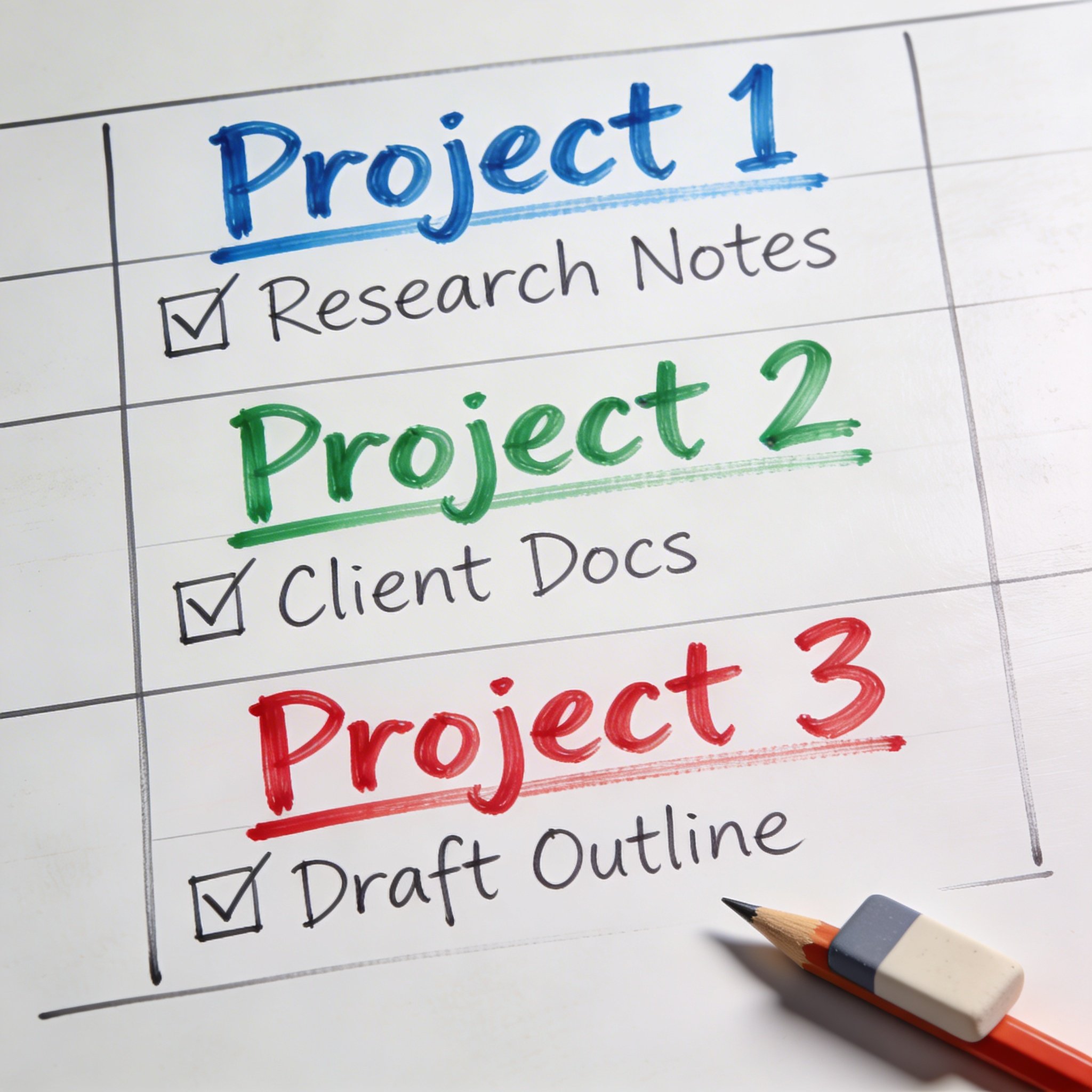
Every project has its own universe of links.
Documentation. Tools. References. Competitors. Resources. All scattered across browser tabs, notes apps, and your increasingly unreliable memory.
Project-based bookmark organization solves this. When you start a project, everything you need is in one place. When the project ends, you archive it cleanly.
This guide shows you how to organize bookmarks by project—with templates, tools, and workflows that actually work.
Why Organize by Project
The Problem with Topic-Based Organization
Most people organize bookmarks by topic:
Development/
Design/
Marketing/
Personal/
This works until you’re working on a project that spans multiple topics. Where do you put the design docs for your development project? The marketing analytics for your client work?
Project-Based Advantages
Everything in one place: All resources for “Client X Website Redesign” live together, regardless of type.
Easy context switching: Switch projects = switch bookmark folders. Instant focus.
Clean archival: Project done? Move the whole folder to archive. Nothing left behind.
Temporal clarity: Projects have start and end dates. Topics don’t.
Reduced cognitive load: “Where’s that link for Project X?” → Check Project X folder.
Project Folder Structure
Basic Template
Bookmarks/
├── Active Projects/
│   ├── [Project Name 1]/
│   │   ├── Documentation
│   │   ├── Tools
│   │   ├── References
│   │   └── Competitors
│   └── [Project Name 2]/
├── Ongoing/
│   ├── Personal
│   ├── Learning
│   └── Side Projects
└── Archive/
    ├── 2025/
    └── 2024/
Detailed Project Folder
For complex projects, use subfolders:
Project: E-commerce Redesign/
├── 📋 Overview
│   ├── Project brief
│   ├── Timeline
│   └── Team contacts
├── 🎨 Design
│   ├── Inspiration
│   ├── Figma files
│   └── Brand guidelines
├── 💻 Development
│   ├── GitHub repo
│   ├── Documentation
│   └── APIs
├── 📊 Analytics
│   ├── Current metrics
│   ├── Competitor analysis
│   └── User research
├── 📝 Content
│   ├── Copy docs
│   ├── Image assets
│   └── SEO research
└── 🔧 Tools
    ├── Project management
    ├── Communication
    └── Testing
Minimal Project Folder
For smaller projects:
Project: Blog Article Series/
├── Research (5-10 links)
├── Examples (3-5 links)
└── Tools (2-3 links)
Setting Up Your System
Step 1: Audit Current Bookmarks
Before reorganizing:
- Export current bookmarks (backup)
- Delete obviously dead/outdated links
- Identify which links belong to which project
- Note links that don’t fit any project (these go to “Ongoing”)
Step 2: Create the Structure
In your browser:
- Create “Active Projects” folder
- Create “Ongoing” folder
- Create “Archive” folder
- Within Active Projects, create one folder per current project
Step 3: Migrate Existing Bookmarks
Move bookmarks to appropriate project folders:
- Start with your most active project
- Search bookmarks for related keywords
- Drag to project folder
- Repeat for each project
- Put non-project links in “Ongoing”
Step 4: Establish the Workflow
When starting a new project: 1. Create new folder in Active Projects 2. Add subfolder structure (if needed) 3. Start collecting links
When working on a project: 1. Save new links directly to project folder 2. Add to appropriate subfolder
When finishing a project: 1. Review folder for anything worth keeping long-term 2. Move folder to Archive/[Year] 3. Delete truly unnecessary links
Tools for Project-Based Organization
Browser Native
Chrome/Edge: - Folders only (no tags) - Easy drag-and-drop - Limited search
Firefox: - Folders + tags - Can tag bookmarks for cross-project search - Better for complex systems
Safari: - Folders only - Clean interface - Limited features
Dedicated Bookmark Managers
NavHub: - Projects as workspaces - AI auto-categorization - Full-text search within projects - Visual project overview
Raindrop.io: - Collections = projects - Nested sub-collections - Team sharing for project collaboration
Notion: - Databases for project links - Link bookmarks to project pages - Ultimate flexibility
Comparison
| Feature | Browser | NavHub | Raindrop | Notion |
|---|---|---|---|---|
| Project folders | ✅ | ✅ | ✅ | ✅ |
| Search in project | Basic | Full-text | Full-text | Basic |
| Tags across projects | Firefox | ✅ | ✅ | ✅ |
| Team sharing | ❌ | Pro | Pro | ✅ |
| Auto-organization | ❌ | AI | ❌ | ❌ |
Workflow Examples
Freelancer: Client Projects
Active Projects/
├── Client: Acme Corp/
│   ├── Brand assets
│   ├── Their existing site
│   ├── Competitor sites
│   ├── Tools we're using
│   └── Communication (Slack, email)
├── Client: StartupXYZ/
│   └── [same structure]
└── Client: LocalBusiness/
    └── [same structure]

Ongoing/
├── Portfolio examples
├── Tools I use
├── Learning resources
└── Prospecting

Archive/
└── 2025/
    ├── Client: OldClient1 (completed Jan)
    └── Client: OldClient2 (completed Mar)
Developer: Side Projects
Active Projects/
├── SaaS: TaskManager/
│   ├── Stack documentation
│   ├── Competitor analysis
│   ├── Design inspiration
│   ├── Deployment tools
│   └── Marketing ideas
├── OpenSource: MyLibrary/
│   ├── Related libraries
│   ├── Documentation examples
│   └── GitHub actions
└── Learning: Rust/
    ├── Official docs
    ├── Tutorials
    └── Example projects

Ongoing/
├── Dev tools
├── Reference (MDN, etc.)
└── Tech news
Researcher: Academic Projects
Active Projects/
├── Paper: AI Ethics Study/
│   ├── Primary sources
│   ├── Secondary sources
│   ├── Methodology references
│   ├── Data sources
│   └── Related papers
├── Grant: NSF Proposal/
│   ├── Grant requirements
│   ├── Budget tools
│   └── Supporting research
└── Course: Fall 2026/
    ├── Syllabus references
    ├── Lecture resources
    └── Assignment tools

Ongoing/
├── Journals I follow
├── Research tools
└── Academic resources
Best Practices
1. Name Projects Clearly
Good names: - “Client: Acme Corp Website Redesign” - “Product: Launch Campaign Q1” - “Learning: AWS Certification”
Bad names: - “Project 1” - “Work stuff” - “New thing”
Include client/category and specific project name.
2. Limit Active Projects
If you have 20 “active” projects, you’re not organizing—you’re hoarding.
Rule: 5-7 active projects maximum. If more, some should be: - Archived (done or abandoned) - Moved to “Someday” (not actually active) - Combined (related projects)
3. Review Weekly
Every Friday (or your preferred day):
- Review each active project folder
- Delete links you no longer need
- Move completed projects to archive
- Process any unsorted bookmarks
4. Use Consistent Subfolders
Pick a subfolder structure and use it everywhere:
Every project has:
├── Docs
├── Tools
├── Reference
└── Inspiration
Consistency means less thinking.
5. Archive, Don’t Delete
When a project ends: - Don’t delete the folder - Move to Archive/[Year]/ - You might need those links later
6. Cross-Reference with Tags (If Available)
If your tool supports tags: - Tag by skill: #design, #development, #marketing - Tag by status: #active, #review, #blocked - Tag by type: #tool, #reference, #inspiration
This lets you find all design resources across all projects.
Common Problems and Solutions
Problem: Link belongs to multiple projects
Solution: - Use tags (Firefox, NavHub, Raindrop) - Duplicate the bookmark (browser native) - Keep in “Ongoing” with note about related projects
Problem: Too many subfolders
Solution: Flatten. Most projects need only 3-5 subfolders. More than that, you’re over-engineering.
Problem: Forgetting to file bookmarks
Solution: - Use “Inbox” folder for quick saves - Process inbox weekly - Or use AI tool (NavHub) that auto-files
Problem: Project scope creep in bookmarks
Solution: Create new project folder when scope significantly changes. Don’t let one folder become a dumping ground.
Problem: Can’t find archived project links
Solution: - Name archive folders clearly - Keep a simple index file/note - Use tool with full-text search
Quick Start Template
Copy this structure to start today:
Bookmarks/
├── 📂 Active Projects/
│   ├── [Project 1]/
│   │   ├── Docs
│   │   ├── Tools
│   │   └── Reference
│   └── [Project 2]/
│       └── [same structure]
├── 📂 Ongoing/
│   ├── Tools I use daily
│   ├── Learning
│   └── Inspiration
├── 📂 Inbox/
│   └── (unsorted bookmarks)
└── 📂 Archive/
    └── 2025/
Conclusion
Project-based bookmark organization brings order to chaos.
Key principles:
- One folder per project: All related links together
- Consistent structure: Same subfolders everywhere
- Active/Ongoing/Archive: Clear lifecycle for projects
- Weekly review: Keep it maintained
- Archive, don’t delete: You’ll thank yourself later
Start with your current most important project. Create the folder, move the links, experience the clarity.
Then do the next one.
Want AI to organize projects for you? NavHub automatically categorizes bookmarks into projects
How do you organize project bookmarks? Share your system in the comments!