How to Import and Export Bookmarks (2026)
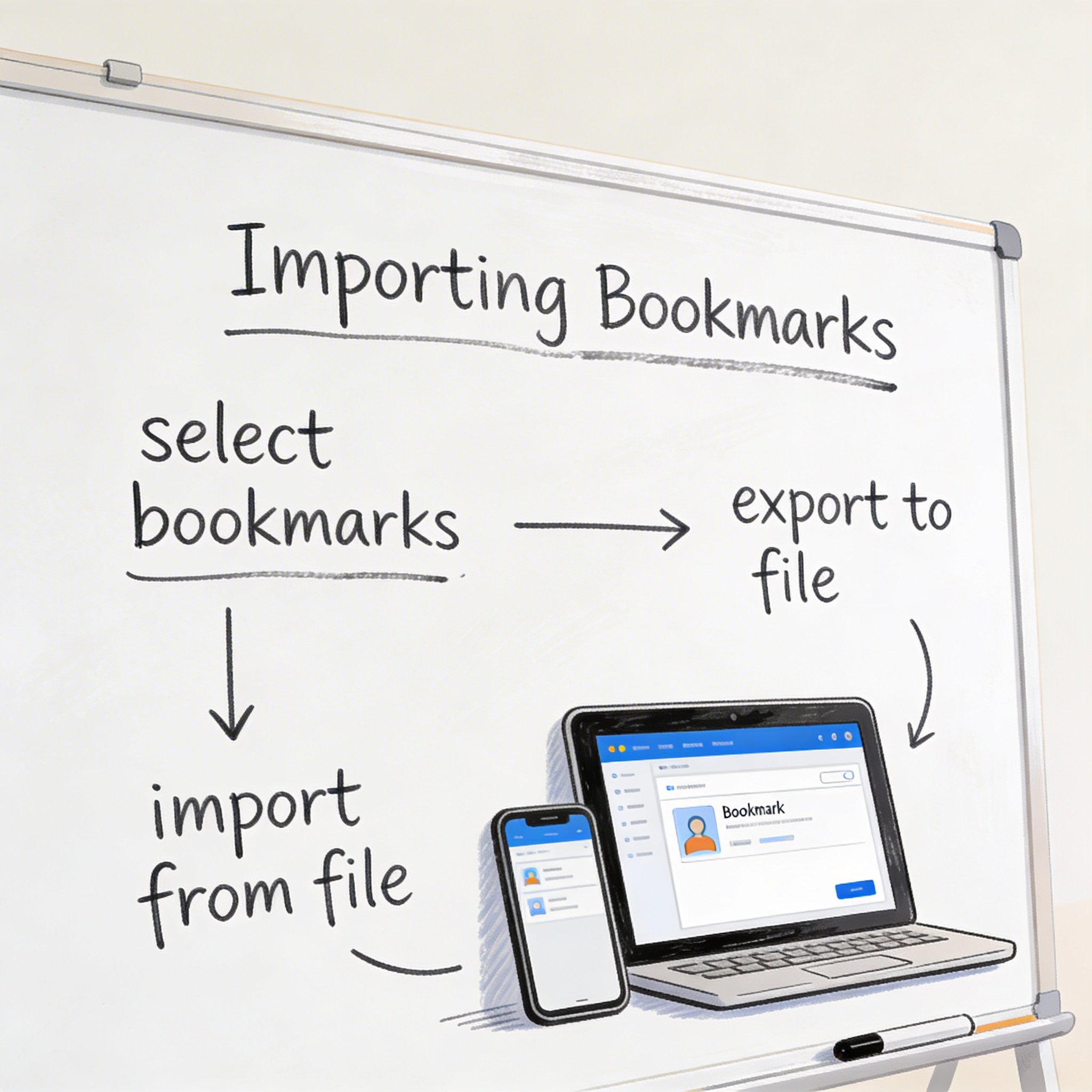
Switching browsers? Moving to a new computer? Backing up your bookmarks?
You need to know how to import and export bookmarks. This guide covers every major browser and bookmark manager.
Browser Export/Import
Chrome
Export: 1. Bookmark Manager (Ctrl + Shift + O) 2. Three-dot menu → Export bookmarks 3. Save as HTML file
Import: 1. Bookmark Manager 2. Three-dot menu → Import bookmarks 3. Select HTML file
Firefox
Export: 1. Library (Ctrl + Shift + O) 2. Import and Backup → Export Bookmarks to HTML
Import: 1. Library 2. Import and Backup → Import Bookmarks from HTML
Edge
Export: 1. Favorites (Ctrl + Shift + O) 2. Three-dot menu → Export favorites
Import: 1. Settings → Import browser data 2. Choose source browser or HTML file
Safari
Export: 1. File → Export Bookmarks 2. Save as HTML
Import: 1. File → Import From → Bookmarks HTML File
Cross-Browser Migration
Chrome → Firefox
- Firefox: Library → Import and Backup → Import Data from Another Browser
- Select Chrome, choose what to import
Firefox → Chrome
- Chrome: Settings → Import bookmarks and settings
- Select Firefox
Any Browser → Any Browser
- Export from source as HTML
- Import HTML to destination
Bookmark Manager Migration
To Raindrop.io
- Import HTML, CSV, or from Pocket/Instapaper
- Settings → Import
To NavHub
- Import HTML file
- AI auto-categorizes imported bookmarks
To Notion
- No direct import
- Use integration tools or manual copy
To Pocket
- Import HTML via web interface
- Settings → Import
Backup Best Practices
Regular backups: Export monthly Storage: Cloud drive (Google Drive, Dropbox) Multiple copies: Keep 2-3 versions Test restores: Verify backups work
Conclusion
Export/import is essential for bookmark portability. Keep regular backups and test them.
Want easy bookmark migration with AI organization? Try NavHub