How to Import Bookmarks from Chrome, Firefox, and Safari
Complete guide to exporting bookmarks from any browser and importing them to a new browser or bookmark manager. Step-by-step instructions with screenshots.
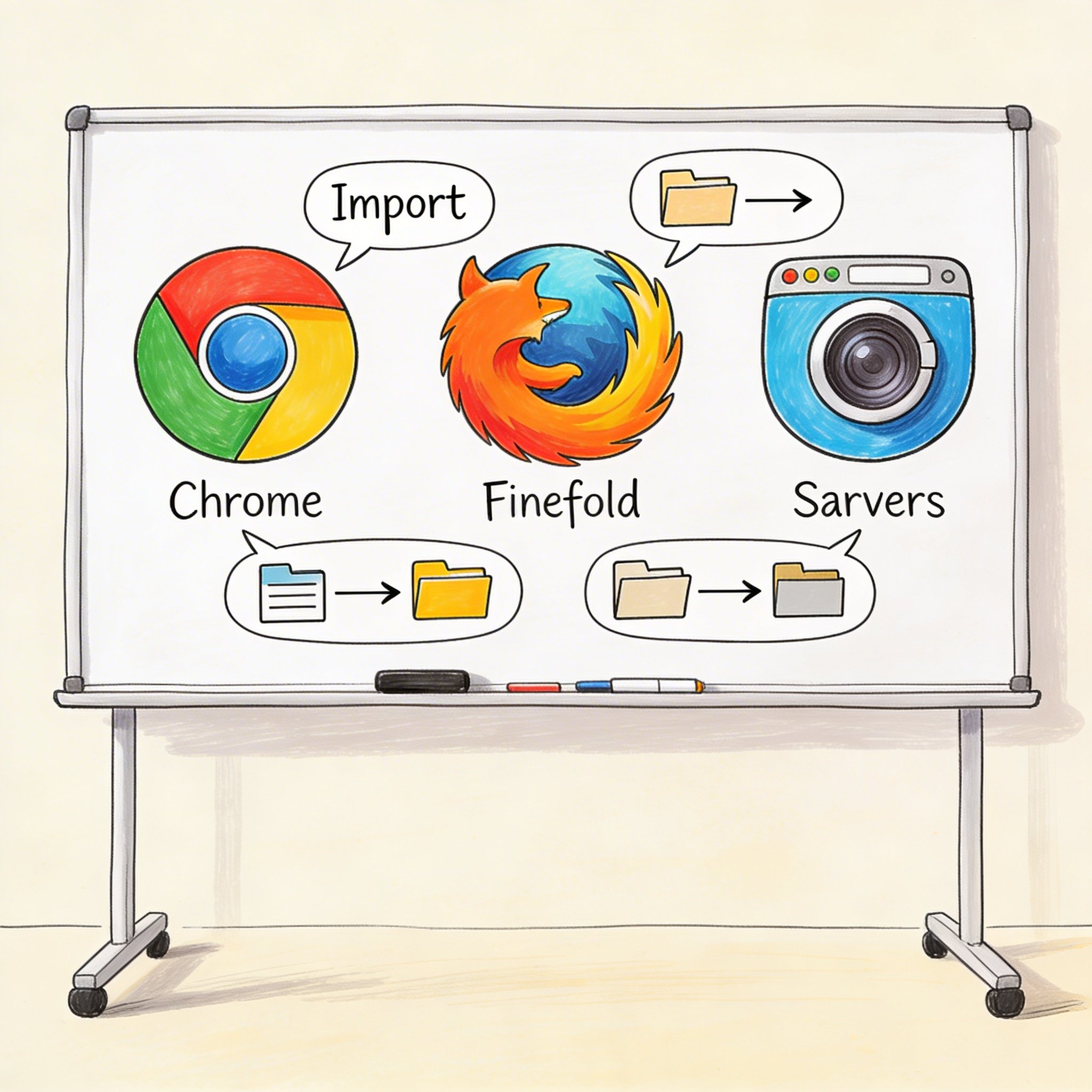
Switching browsers? Moving to a new bookmark manager? Don’t lose years of saved links.
This guide covers exactly how to export bookmarks from Chrome, Firefox, Safari, Edge, and Opera—and import them into your new home.
Why Import/Export Bookmarks?
Common scenarios:
- Switching browsers - Moving from Chrome to Firefox (or vice versa)
- New computer - Setting up a fresh machine
- Backup - Protecting against browser crashes or data loss
- Migration to bookmark manager - Moving to NavHub, Raindrop, or Pocket
- Sync issues - Browser sync failing, need manual transfer
- Decluttering - Export, clean up, re-import
Whatever your reason, the process is straightforward. Let’s go through each browser.
Exporting Bookmarks
From Google Chrome
Method 1: Bookmark Manager (Recommended)
- Open Chrome
- Press
Ctrl+Shift+O(Windows) orCmd+Shift+O(Mac) - Click the three-dot menu (⋮) in the top-right
- Select “Export bookmarks”
- Choose location and save as HTML file
Method 2: Via Settings
- Open Chrome
- Go to
chrome://bookmarks - Click the three-dot menu
- Select “Export bookmarks”
What you get: An HTML file containing all bookmarks with folder structure.
From Mozilla Firefox
Method 1: Library (Recommended)
- Open Firefox
- Press
Ctrl+Shift+O(Windows) orCmd+Shift+O(Mac) - Click “Import and Backup” in the toolbar
- Select “Export Bookmarks to HTML…”
- Choose location and save
Method 2: Via Menu
- Click the hamburger menu (☰)
- Go to Bookmarks → Manage Bookmarks
- Import and Backup → Export Bookmarks to HTML
Firefox-specific option: You can also export as JSON (preserves more metadata like tags and descriptions):
- Import and Backup → Backup
- Saves as .json file
From Safari (Mac)
- Open Safari
- Go to File menu
- Select “Export Bookmarks…”
- Choose location and save as HTML file
Note: Safari only exports as HTML. Folder structure is preserved.
From Microsoft Edge
Method 1: Settings
- Open Edge
- Click the three-dot menu (⋯)
- Go to Favorites
- Click the three-dot menu in Favorites
- Select “Export favorites”
- Save as HTML file
Method 2: Direct URL
- Open Edge
- Go to
edge://favorites - Click three-dot menu → Export favorites
From Opera
- Open Opera
- Go to Menu → Bookmarks → Show All Bookmarks
- Click Import/Export in the bottom-left
- Select “Export bookmarks”
- Save as HTML file
From Brave
- Open Brave
- Press
Ctrl+Shift+OorCmd+Shift+O - Click three-dot menu
- Select “Export bookmarks”
- Save as HTML file
(Brave uses Chromium, so the process is identical to Chrome)
Understanding the Export File
When you export bookmarks, you get an HTML file that looks like this:
<!DOCTYPE NETSCAPE-Bookmark-file-1>
<META HTTP-EQUIV="Content-Type" CONTENT="text/html; charset=UTF-8">
<TITLE>Bookmarks</TITLE>
<H1>Bookmarks</H1>
<DL><p>
    <DT><H3>Bookmarks Bar</H3>
    <DL><p>
        <DT><A HREF="https://example.com">Example Site</A>
        <DT><H3>Work</H3>
        <DL><p>
            <DT><A HREF="https://github.com">GitHub</A>
        </DL><p>
    </DL><p>
</DL><p>
This format is called “Netscape Bookmark File” and is universally supported by: - All major browsers - Most bookmark managers - Import tools
What’s preserved: - ✅ URLs - ✅ Titles - ✅ Folder structure - ✅ Creation dates (sometimes)
What may be lost: - ❌ Favicons (need to refresh) - ❌ Tags (Firefox-specific) - ❌ Descriptions (browser-specific) - ❌ Custom icons
Importing Bookmarks
Into Google Chrome
Method 1: Bookmark Manager
- Open Chrome
- Press
Ctrl+Shift+OorCmd+Shift+O - Click the three-dot menu
- Select “Import bookmarks”
- Choose your HTML file
Method 2: Via Settings
- Go to Settings → You and Google
- Click “Import bookmarks and settings”
- Select “Bookmarks HTML File” from dropdown
- Choose file and import
Where they go: Imported bookmarks appear in a folder called “Imported” or “Imported from [Browser Name]”
Into Mozilla Firefox
Method 1: Library
- Press
Ctrl+Shift+OorCmd+Shift+O - Click “Import and Backup”
- Select “Import Bookmarks from HTML…”
- Choose your file
Method 2: First-run wizard
If this is a fresh Firefox install, it will offer to import bookmarks from other browsers automatically.
Firefox tip: If you have a Firefox JSON backup, use “Restore” instead of “Import” to preserve tags and descriptions.
Into Safari
- Open Safari
- Go to File menu
- Select “Import From” → “Bookmarks HTML File…”
- Choose your file
Imported bookmarks appear in a folder in your Safari Bookmarks.
Into Microsoft Edge
- Open Edge
- Click Settings (⋯) → Favorites
- Click three-dot menu → Import favorites
- Select “Favorites or bookmarks HTML file”
- Choose your file
Alternative: Edge can also directly import from Chrome/Firefox if they’re installed on the same computer.
Into Opera
- Open Opera
- Go to Settings → Browser
- Scroll to “Import bookmarks and settings”
- Select “Bookmarks HTML file”
- Choose your file
Into Brave
- Open Brave
- Go to Settings → Get started
- Click “Import bookmarks and settings”
- Select “Bookmarks HTML File”
- Choose your file
Importing to Bookmark Managers
NavHub
NavHub accepts standard HTML bookmark files with AI-powered organization:
- Log into NavHub
- Go to Settings → Import
- Upload your HTML file
- AI automatically categorizes and tags bookmarks
- Review and adjust if needed
NavHub advantage: No manual folder selection needed. AI analyzes each bookmark and organizes it intelligently.
Raindrop.io
- Log into Raindrop.io
- Go to Settings → Import
- Choose “Browser HTML” format
- Upload your file
- Select destination collection
Pocket doesn’t have direct HTML import. Workaround:
- Import to a browser first
- Use Pocket extension to save links one by one
- Or use third-party tools like IFTTT
Pinboard
- Log into Pinboard
- Go to Settings → Import
- Select “Netscape bookmark file”
- Upload your HTML file
Cross-Browser Direct Import
Most modern browsers can import directly from each other (no export step needed):
Chrome importing from Firefox
- Chrome → Settings → Import bookmarks and settings
- Select “Mozilla Firefox”
- Check “Favorites/Bookmarks”
- Click Import
Firefox importing from Chrome
- Firefox → Library → Import and Backup
- Select “Import Data from Another Browser…”
- Select “Chrome”
- Check Bookmarks
- Click Next
Edge importing from Chrome/Firefox
- Edge → Settings → Profiles
- Click “Import browser data”
- Select source browser
- Check Favorites
- Click Import
Requirements: Both browsers must be installed on the same computer.
Cleaning Up After Import
Remove Duplicates
After importing, you might have duplicates. Here’s how to clean up:
Manual method: 1. Sort bookmarks by name 2. Identify duplicates 3. Delete extras
Browser extensions: - Chrome: “Bookmark Dupes” extension - Firefox: “Bookmark Deduplicator” add-on
NavHub: AI automatically detects and merges duplicates during import.
Reorganize Folders
Imported bookmarks often create messy folder structures:
Bookmarks
├── Imported from Chrome
│   └── [Your old folders]
├── Imported from Firefox
│   └── [More folders]
└── Bookmarks Bar
    └── [Current bookmarks]
Cleanup steps: 1. Open bookmark manager 2. Drag important bookmarks to preferred locations 3. Delete empty “Imported” folders 4. Consolidate similar folders
Update Broken Links
Some bookmarks may be outdated:
Manual check: Open each bookmark and verify it works
Automated tools: - Chrome extension “Check My Links” - Firefox add-on “Link Checker” - Online tools like Dead Link Checker
NavHub: Automatically checks links and marks broken ones.
Backup Best Practices
Now that you know how to export/import, set up regular backups:
Schedule
- Weekly: Quick export if you save many bookmarks
- Monthly: Good for moderate users
- Before browser updates: Always backup before major changes
Storage Locations
Keep backups in multiple places:
- Local folder:
Documents/Bookmarks_Backup/ - Cloud storage: Google Drive, Dropbox, iCloud
- External drive: For extra safety
File Naming
Use consistent naming:
bookmarks_chrome_2026-01-01.html
bookmarks_firefox_2026-01-01.html
This makes it easy to find the right backup.
Troubleshooting Common Issues
Import fails
Causes: - Corrupted HTML file - Wrong file format - File too large
Solutions: - Try exporting again - Check file opens in a browser - Split large bookmark files
Missing bookmarks after import
Causes: - Import didn’t complete - Bookmarks in subfolder
Solutions: - Check “Imported” folder - Search for specific bookmark titles - Try importing again
Folder structure lost
Causes: - Browser-specific format issues - Incorrect export method
Solutions: - Use HTML export (most compatible) - Try JSON backup for Firefox - Manually reorganize
Favicons not showing
Causes: - Favicons not included in export - Browser cache needs refresh
Solutions: - Visit each site once (browser loads favicon) - Clear browser cache - Wait for browser to refresh
Special Cases
Synced Bookmarks
If you use Chrome Sync, Firefox Sync, or iCloud:
- Export from one device: Even if synced, do a manual export
- Disable sync temporarily: Prevent overwriting during migration
- Import to new browser: Then set up new sync
- Re-enable sync: After verifying bookmarks are correct
Very Large Bookmark Collections
If you have 10,000+ bookmarks:
- Export in batches: Some browsers struggle with huge exports
- Use CLI tools:
jqfor JSON manipulation - Consider bookmark managers: They handle scale better
Bookmarks with Tags (Firefox)
Firefox tags don’t export to HTML. To preserve:
- Export as JSON backup (not HTML)
- Import to another Firefox (Restore option)
- Or accept tag loss when migrating to other browsers
Conclusion
Bookmark migration doesn’t have to be scary. The process is:
- Export from old browser (HTML file)
- Import to new browser or bookmark manager
- Clean up duplicates and broken links
- Set up backups for the future
For the smoothest experience, consider using a bookmark manager like NavHub: - Import once from any browser - AI organizes everything automatically - Never lose bookmarks again - Works across all browsers
Ready to organize your bookmarks? Import to NavHub and let AI do the work.
Have questions about importing bookmarks? Ask in the comments!