How to Find Lost or Deleted Bookmarks
Lost your bookmarks? Learn how to recover deleted, missing, or disappeared bookmarks in Chrome, Firefox, Safari, and Edge with step-by-step instructions.
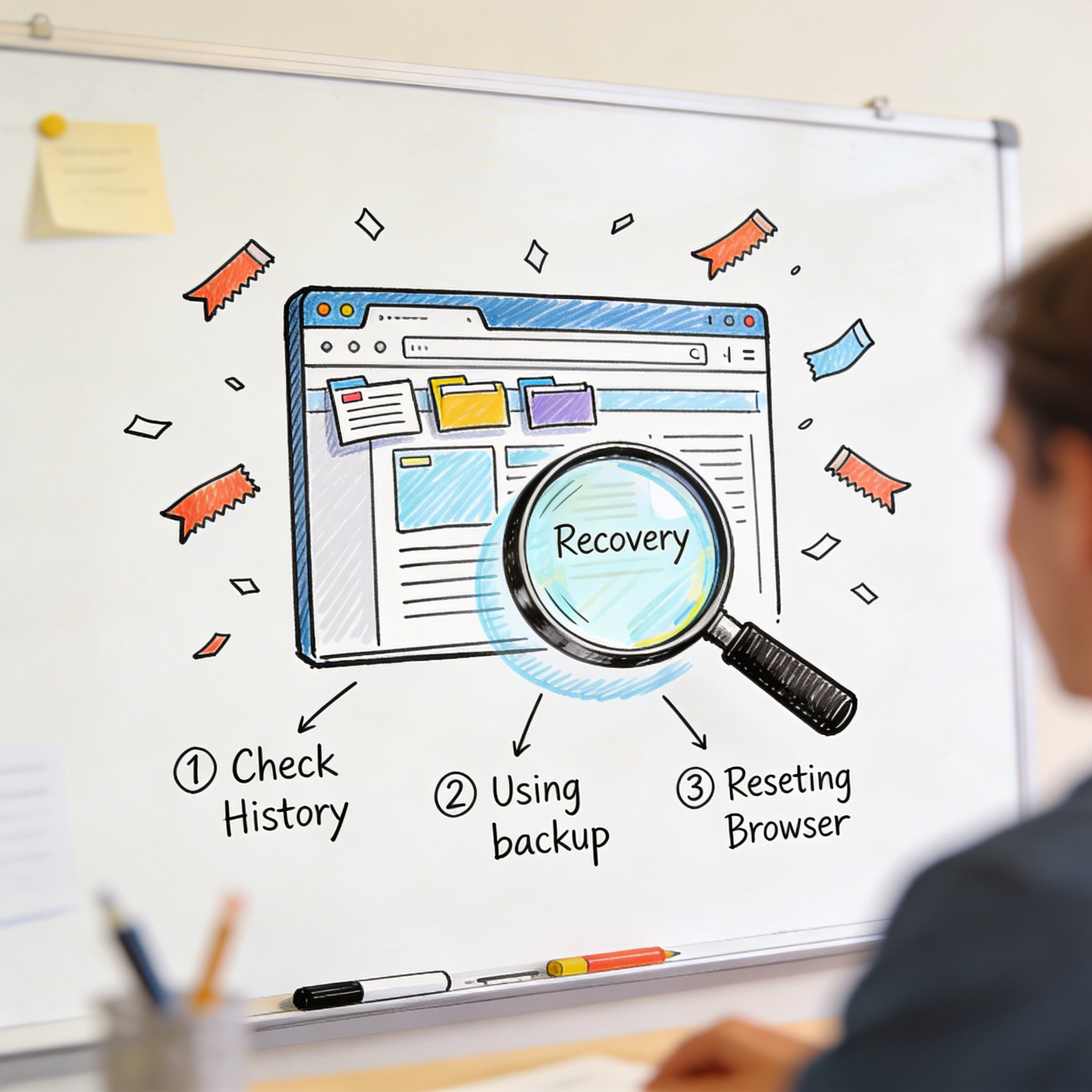
Your bookmarks are gone.
Maybe you deleted one by accident. Maybe they all disappeared after an update. Maybe you can’t find something you know you saved.
Don’t panic. Bookmarks can usually be recovered. This guide shows you how to find lost or deleted bookmarks in every major browser.
Why Bookmarks Disappear
Common Causes
Accidental deletion: Right-click, delete, done. Happens to everyone.
Browser update gone wrong: Updates sometimes reset profiles or corrupt data.
Sync issues: Sync conflicts can wipe bookmarks from one device.
Profile switch: Using wrong browser profile shows different bookmarks.
Extension conflict: Bad extensions can corrupt bookmark data.
Malware: Some malware targets browser data.
Before You Start
Check obvious things first: 1. Are you in the right browser profile? 2. Is the bookmarks bar visible? (Ctrl/Cmd + Shift + B) 3. Did you accidentally drag it to a folder? 4. Is sync working correctly?
Chrome: Recover Lost Bookmarks
Method 1: Undo Deletion (Immediate)
If you just deleted a bookmark: 1. Press Ctrl + Z (Windows) or Cmd + Z (Mac) 2. This undoes the last action, including deletion
Time limit: Works only if you haven’t closed the browser.
Method 2: Check Bookmark Manager
Your bookmark might be in a different folder: 1. Press Ctrl + Shift + O (or Cmd + Opt + B on Mac) 2. Use the search box at the top 3. Search for part of the title or URL
Method 3: Chrome History
Visit history shows pages you’ve bookmarked before: 1. Press Ctrl + H (or Cmd + Y on Mac) 2. Search for the page you lost 3. Open it and re-bookmark
Method 4: Restore from Backup File
Chrome keeps a backup:
Windows:
C:\Users\[YourName]\AppData\Local\Google\Chrome\User Data\Default\Bookmarks.bak
Mac:
~/Library/Application Support/Google/Chrome/Default/Bookmarks.bak
Steps:
1. Close Chrome completely
2. Navigate to the folder above
3. Find Bookmarks.bak
4. Rename current Bookmarks to Bookmarks.old
5. Rename Bookmarks.bak to Bookmarks
6. Restart Chrome
Method 5: Google Sync History
If sync was enabled: 1. Go to google.com/settings/chrome/sync 2. Sign in 3. Click “Manage synced data” 4. Check if bookmarks exist there
Warning: Don’t disable sync—it might overwrite the cloud copy with your empty local copy.
Firefox: Recover Lost Bookmarks
Method 1: Undo (Immediate)
Just deleted something? 1. Press Ctrl + Z (or Cmd + Z) 2. Or: Bookmarks menu → Show All Bookmarks → Organize → Undo
Method 2: Automatic Backups
Firefox keeps automatic backups:
- Open Bookmarks Manager: Ctrl + Shift + O
- Click Import and Backup → Restore
- Choose from dated backups or “Choose File”
Firefox keeps daily backups for 15 days.
Method 3: Find Backup Files
Windows:
C:\Users\[YourName]\AppData\Roaming\Mozilla\Firefox\Profiles\[random].default\bookmarkbackups
Mac:
~/Library/Application Support/Firefox/Profiles/[random].default/bookmarkbackups
Files are named like bookmarks-2026-01-02_123.jsonlz4
Method 4: Firefox Sync
If sync was enabled: 1. Sign in to Firefox on another device 2. Wait for sync to complete 3. If bookmarks are there, export them 4. Import on the affected device
Method 5: Old Firefox Data
After a Firefox reset, old data is saved:
1. Look for “Old Firefox Data” folder on desktop
2. Inside, find your old profile
3. Copy places.sqlite (contains bookmarks)
4. Use a SQLite viewer to extract bookmarks
Safari: Recover Lost Bookmarks
Method 1: Time Machine
If you have Time Machine backup:
1. Open Finder
2. Go to: ~/Library/Safari/
3. Enter Time Machine (icon in menu bar)
4. Navigate back to when bookmarks existed
5. Select Bookmarks.plist
6. Click “Restore”
Method 2: iCloud Sync
If iCloud was syncing bookmarks: 1. Check on another Apple device (iPhone, iPad) 2. If bookmarks exist there, export them 3. Or wait—sync should restore them
Method 3: Recently Deleted
Safari doesn’t have this built-in, but check: 1. iCloud.com → Settings → Advanced → Restore Bookmarks 2. Choose a date to restore from
Method 4: Reading List
Check if it’s in Reading List instead: 1. Bookmarks → Show Reading List 2. Your saved item might be there
Edge: Recover Lost Bookmarks
Method 1: Undo
Press Ctrl + Z immediately after deletion.
Method 2: Favorites Manager
Search for misplaced bookmarks: 1. Press Ctrl + Shift + O 2. Use search box 3. Check all folders
Method 3: Microsoft Account Sync
If signed in: 1. Go to account.microsoft.com 2. Navigate to privacy settings 3. Check for synced data 4. Or: sign in on another device to recover
Method 4: Backup Files
Windows:
C:\Users\[YourName]\AppData\Local\Microsoft\Edge\User Data\Default\Bookmarks.bak
Same restoration process as Chrome:
1. Close Edge
2. Rename Bookmarks to Bookmarks.old
3. Rename Bookmarks.bak to Bookmarks
4. Restart Edge
Third-Party Bookmark Managers
NavHub/Raindrop/Pocket
If you use a dedicated bookmark manager:
- Check trash/archive: Most have a deleted items folder
- Check web interface: Might show bookmarks not synced to device
- Contact support: They may have backups
- Export history: Some track changes over time
Recovery Tips
- Log into web version
- Check if mobile app has different data
- Look for “recently deleted” or “trash” feature
- Check email for sync notifications
Prevent Future Loss
Enable Browser Sync
Chrome: Settings → Sync → Turn on Firefox: Settings → Sync → Sign in Safari: System Preferences → iCloud → Safari Edge: Settings → Profiles → Sync
Regular Exports
Export bookmarks monthly:
Chrome: Bookmark Manager → ⋮ → Export Firefox: Bookmarks → Show All → Import and Backup → Export to HTML Safari: File → Export Bookmarks Edge: Favorites → ⋮ → Export
Store in cloud storage (Google Drive, Dropbox, iCloud).
Use a Backup Bookmark Manager
Save important bookmarks in two places: - Browser bookmarks (for speed) - NavHub/Raindrop (for backup and search)
If one fails, you have the other.
Be Careful with Extensions
Some extensions can corrupt bookmarks. Be careful with: - Bookmark managers that modify your bookmarks - Sync tools that aren’t official - Any extension with bookmark permission
Finding “Lost” Bookmarks
It’s Not Deleted—It’s Misplaced
Often bookmarks aren’t deleted, just moved:
Check these locations: 1. Bookmarks Bar folder 2. Other Bookmarks folder 3. Mobile Bookmarks folder (from phone sync) 4. Unsorted Bookmarks 5. Every subfolder
Use Browser Search
All bookmark managers have search:
- Chrome: @bookmarks in address bar, then search term
- Firefox: * in address bar, then search term
- Safari: Bookmarks → Edit Bookmarks → search
- Edge: Favorites bar → search box
Search by URL Fragment
Don’t remember the title? Search by: - Domain: “github” - Topic: “react” - Word from URL: “tutorial”
When Bookmarks Are Truly Gone
Accept and Rebuild
Sometimes bookmarks can’t be recovered. When that happens:
- Check browser history for frequently visited sites
- Check password manager for saved logins
- Search email for links you’ve shared
- Ask colleagues if you shared links with them
- Use web archive (archive.org) if you remember URLs
Rebuild Smarter
Use this as opportunity to: - Clean up old, unused bookmarks - Organize with better structure - Start using tags (Firefox) or collections - Set up automatic backups - Consider a dedicated bookmark manager
Quick Recovery Checklist
Immediately After Losing Bookmarks
- [ ] Press Ctrl/Cmd + Z (undo)
- [ ] Check if bookmarks bar is visible
- [ ] Verify you’re in the correct browser profile
- [ ] Search in bookmark manager
If Immediate Recovery Fails
- [ ] Close browser, find backup file
- [ ] Check browser sync status
- [ ] Look on other synced devices
- [ ] Check cloud backup (Time Machine, Google Takeout)
For Third-Party Tools
- [ ] Check trash/archive
- [ ] Log into web version
- [ ] Contact support
Prevention for Future
- [ ] Enable sync
- [ ] Export monthly
- [ ] Use backup bookmark manager
- [ ] Be careful with extensions
Conclusion
Lost bookmarks are stressful, but usually recoverable.
Key steps:
- Act fast: Undo works immediately after deletion
- Check backups: Browsers keep automatic backups
- Use sync: Cloud copies often survive local issues
- Search thoroughly: Bookmarks might be misplaced, not deleted
- Prevent future loss: Sync + export + backup manager
Most importantly: don’t sync or close browser until you’ve tried recovery. Syncing might overwrite your cloud backup with empty data.
Take this as a reminder to export your bookmarks today. Future you will thank you.
Never lose bookmarks again? Try NavHub with automatic cloud backup
Have you lost bookmarks before? How did you recover them? Share in the comments!