Bookmark Folders vs Tags: Which Organization Method is Better?
Compare folders and tags for bookmark organization. Learn when to use each method and how to combine them for the best results.
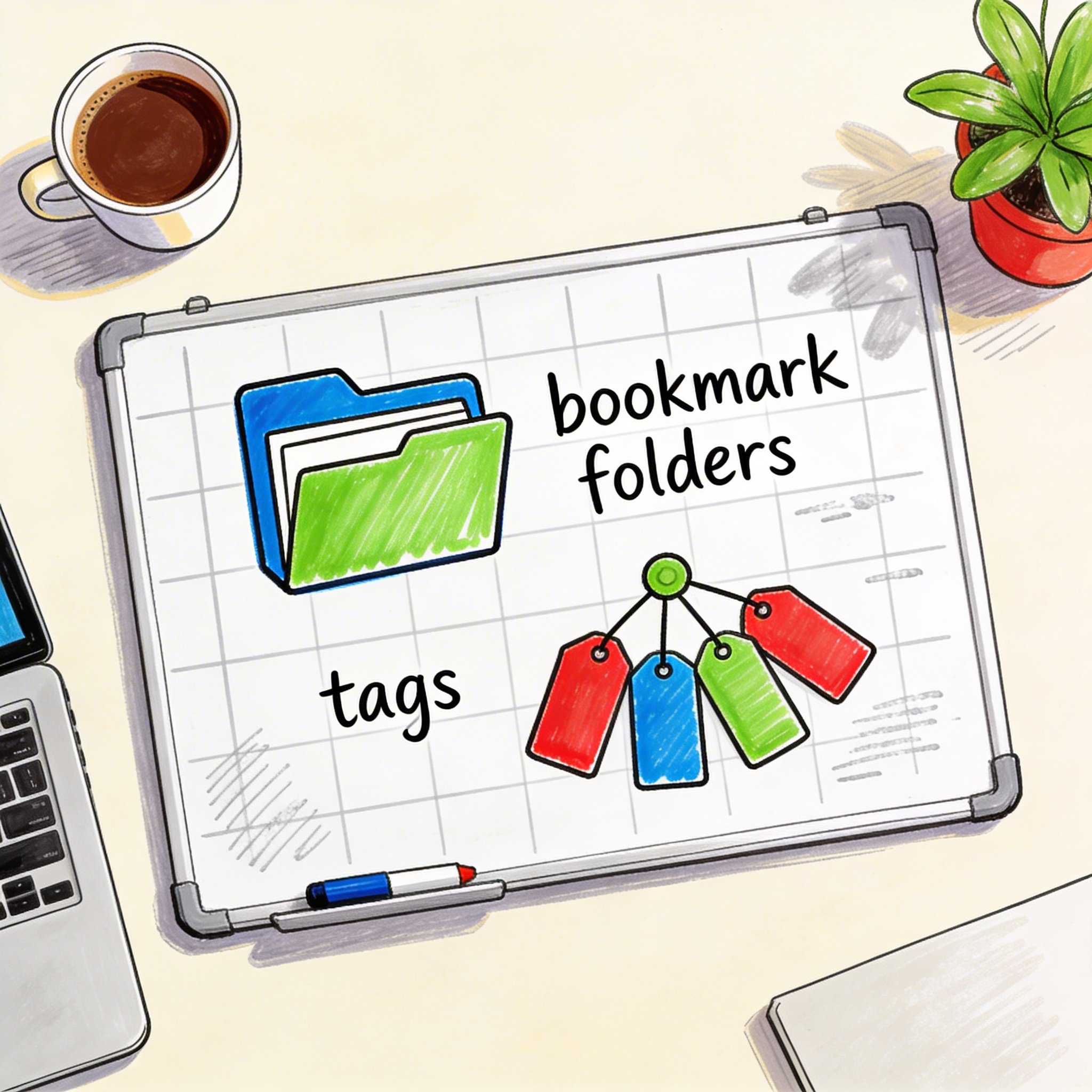
Folders or tags?
It’s the eternal organization debate. Files, photos, notes—and bookmarks.
Some people swear by folders. Others can’t live without tags. Both have passionate defenders.
This guide breaks down folders vs. tags for bookmark organization, helping you choose the right approach for your needs.
Understanding the Difference
Folders: Hierarchical Organization
How it works: - One bookmark → one folder - Folders can nest inside folders - Like physical filing cabinets
Example:
Development/
├── Frontend/
│   ├── React/
│   │   └── [bookmark here]
│   └── CSS/
└── Backend/
    └── Python/
Tags: Flat Organization
How it works: - One bookmark → multiple tags - No hierarchy (usually) - Like labels on items
Example:
Bookmark: "React Performance Tips"
Tags: #react, #performance, #frontend, #tutorial
Folders: Pros and Cons
Advantages of Folders
1. Visual structure
You can see the hierarchy at a glance. It’s intuitive—like organizing physical papers.
2. Clear location
Every bookmark has one home. You always know where to find it.
3. Browser native
All browsers support folders. No extra tools needed.
4. Easy browsing
Click through folders to discover what you have. Good for visual browsing.
5. Familiar system
Everyone understands folders from file systems. Zero learning curve.
Disadvantages of Folders
1. One place only
A bookmark about “React performance” can only be in ONE folder: - React? - Performance? - Tutorials?
Pick one. Lose findability in others.
2. Deep nesting trap
Over time, folders become:
Work/
└── Projects/
    └── 2024/
        └── Q1/
            └── Client A/
                └── Research/
                    └── [finally, the bookmark]
Too many clicks to reach anything.
3. Rigid structure
Changing your organization means moving everything. Painful with 500+ bookmarks.
4. Scale problems
Works great at 50 bookmarks. Falls apart at 500.
5. Single dimension
Only organizes by one attribute (topic, project, etc.). Can’t slice multiple ways.
Tags: Pros and Cons
Advantages of Tags
1. Multiple dimensions
One bookmark can have many tags:
"React Performance Guide"
Tags: #react, #performance, #frontend, #learning
Find it by any of those terms.
2. Flexible retrieval
Search by one tag or combine: - All #react - All #react + #performance - All #performance (across all technologies)
3. Flat is fast
No clicking through nested folders. Search and filter instantly.
4. Scales well
Works the same at 50 or 5,000 bookmarks. Tags don’t get “deeper.”
5. Cross-category linking
Some bookmarks span categories. Tags embrace this instead of forcing a choice.
Disadvantages of Tags
1. No visual hierarchy
Hard to get a “map” of what you have. Tags are a flat list.
2. Tag chaos
Without discipline: - #react, #React, #ReactJS, #react-js - Which one did you use?
Inconsistency kills findability.
3. Not browser-native
Chrome and Edge don’t support tags. Need third-party tools.
4. Tagging overhead
Every bookmark needs tags. More effort than “throw in folder.”
5. Discovery harder
You can’t browse tags to find forgotten bookmarks. Need to know what to search for.
When to Use Folders
Folders Work Best For:
1. Small collections (< 200 bookmarks)
Easy to maintain, visual browsing works.
2. Project-based organization
Projects/
├── Project A/
├── Project B/
└── Project C/
Clear separation, temporary duration.
3. Exclusive categories
When bookmarks truly belong to ONE category: - Personal vs. Work - Client A vs. Client B - Current vs. Archive
4. Browser-only users
No extra tools. Works everywhere.
5. Teams with shared structure
When everyone needs to find things the same way.
Folder Best Practices
- Maximum 2 levels deep
- 5-15 items per folder
- Clear, specific names
- “Inbox” for unsorted
- Regular cleanup
When to Use Tags
Tags Work Best For:
1. Large collections (500+ bookmarks)
Scales without getting messy.
2. Cross-category content
Bookmark spans multiple topics? Tag all of them.
3. Research and learning
Tags: #machine-learning, #python, #tutorial, #2024
Slice by technology, format, or date.
4. Powerful search needs
Combine tags: #react AND #performance AND #video
5. Personal systems
When you control your own taxonomy.
Tag Best Practices
- Standardize format: lowercase, hyphens (
web-developmentnotWeb Development) - Limit tag count: 3-5 per bookmark
- Create tag hierarchy with prefixes:
dev/react,dev/python - Review and merge similar tags quarterly
- Use broad + specific:
#react(broad) +#react-hooks(specific)
The Hybrid Approach (Best of Both)
Why choose? Use both.
How Hybrid Works
Folders for high-level categories:
Work/
Personal/
Learning/
Archive/
Tags for cross-cutting attributes:
#reference, #tutorial, #tool, #inspiration
#react, #python, #design
#urgent, #someday
Hybrid Example
Folders:
Work/
├── Documentation/
├── Tools/
└── Projects/

Learning/
├── Courses/
└── Tutorials/

Tags applied across all:
#react, #python, #design
#reference, #hands-on
#priority, #review-later
A React tutorial for work:
- Folder: Work/Projects/ or Learning/Tutorials/
- Tags: #react, #tutorial, #work
Hybrid Benefits
- Visual organization (folders)
- Multi-dimensional search (tags)
- Flexibility without chaos
- Scales better than folders-only
Tool Comparison
| Tool | Folders | Tags | Hybrid |
|---|---|---|---|
| Chrome | ✅ | ❌ | ❌ |
| Firefox | ✅ | ✅ | ✅ |
| Safari | ✅ | ❌ | ❌ |
| Edge | ✅ | ❌ | ❌ |
| NavHub | ✅ | ✅ | ✅ + AI |
| Raindrop | ✅ | ✅ | ✅ |
| ❌ | ✅ | Tag-only | |
| Pinboard | ❌ | ✅ | Tag-only |
If You Want Tags:
Browser-based: Firefox (native tag support) Dedicated tool: NavHub, Raindrop.io, Pinboard
Migration Guide
Moving from Folders to Tags
Map folders to tags
Development/Frontend/React/→#development,#frontend,#react
Add tags systematically
- Process one folder at a time
- Add relevant tags to each bookmark
Keep temporary folders
- Don’t delete until tags are complete
Test retrieval
- Search for bookmarks using tags
- Verify you find what you expect
Moving from Tags to Folders
Identify primary categories
- Most-used tags become folders
Choose one tag per bookmark
- The “primary” tag determines folder
Accept some loss
- You’ll lose multi-dimensional access
Add reference tags to titles
- “React Performance Tips [tutorial]”
Which Should You Choose?
Choose Folders If:
- You have < 200 bookmarks
- You use Chrome, Safari, or Edge (no tag support)
- You prefer visual browsing
- Categories are exclusive (work vs. personal)
- You want zero learning curve
Choose Tags If:
- You have 500+ bookmarks
- Content spans multiple categories
- You need powerful search
- You’re willing to use a dedicated tool
- Consistency is your strength
Choose Hybrid If:
- You have 200-1000+ bookmarks
- You want visual structure AND flexible search
- You use a tool that supports both
- You’re willing to invest in organization
The AI Alternative
What if you didn’t have to choose?
AI-Powered Organization
Modern tools like NavHub use AI to: - Auto-categorize bookmarks when saved - Auto-tag based on content analysis - Semantic search finds by meaning, not exact tags
Example
Save: “10 React Performance Optimization Tips”
AI does: - Folder: Development → Frontend → React - Tags: #react, #performance, #optimization, #tutorial - Searchable by: “make react faster”, “speed up frontend”
No manual organizing. Search naturally.
Conclusion
Folders vs. tags isn’t about which is “better.” It’s about what fits your needs.
Folders: Simple, visual, limited scaling Tags: Flexible, powerful, requires discipline Hybrid: Best of both, more setup AI: Automatic, modern, requires new tools
Quick Decision Guide
| Your Situation | Recommendation |
|---|---|
| < 200 bookmarks, browser only | Folders |
| 500+ bookmarks, research-heavy | Tags (dedicated tool) |
| Mix of needs, willing to invest | Hybrid |
| Want zero effort | AI-powered (NavHub) |
Stop debating. Start organizing.
Want organization without the work? Try NavHub with AI-powered categorization
Are you team folders or team tags? Share in the comments!